VLC Media Player stands out as a powerhouse, playing virtually any media format without ads, bloat, or restrictions. As a free, open-source staple for Windows users, it's my go-to for reliable playback year after year.
Ready to make it truly yours? Customize the interface to declutter for immersive viewing or spotlight your favorite controls. With years of fine-tuning media players, here's how to tailor VLC's appearance and layout professionally.
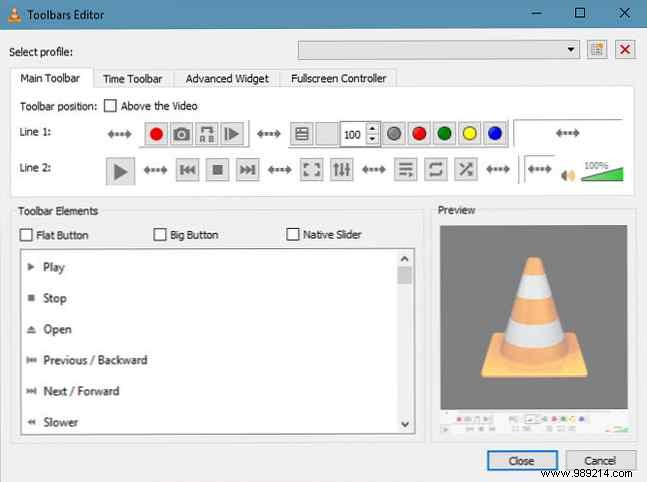
Start by navigating to Tools > Customize Interface. This opens four customizable tabs, starting with Main Toolbar for core playback controls.
Drag elements from the top Toolbar Items list into toolbar sections below. Leverage Spacer and Expansion Spacer for precise spacing. The live Preview shows updates, including full-screen mode.
Beyond Main Toolbar, tweak Time Toolbar, Advanced Widget, and Full-Screen Controller. Enable these via View > Advanced Controls first.
Click Close to apply changes. Save your setup using the Select a profile dropdown at the top—hit the New icon or choose presets like Minimalist Style.
Unlock even more with 6 More VLC Media Player Features You Must Try. This guide reveals powerful hidden gems to maximize VLC's potential.
