As a long-time Kodi user and media enthusiast, I've helped countless people navigate its powerful features while staying on the right side of the law. Kodi itself is completely legal to own and use on any device—whether it's an Android TV box, Amazon Fire Stick, Raspberry Pi, or PC. The issues arise from third-party add-ons that stream copyrighted content without permission. Here's how to transform your setup into a fully legal media center for movies, TV shows, music, podcasts, and sports.
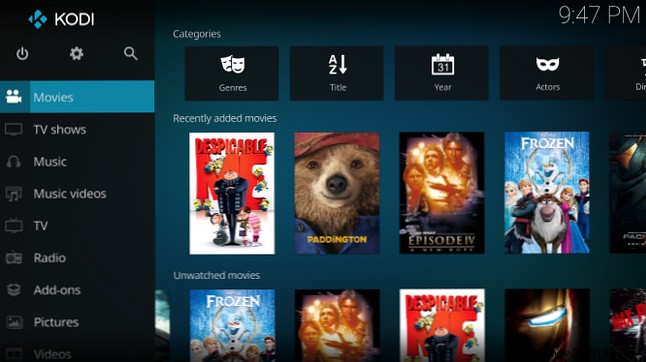
Start by reviewing all installed add-ons. Many illegal ones have already been shut down due to legal actions, regardless of your device. Boot up Kodi, test each add-on, and verify if it provides licensed content.
Quick tip: If you're streaming movies or TV shows without paying, uninstall it immediately.
To uninstall: Navigate to Add-ons > My Add-ons, select the add-on, choose Uninstall, confirm, and wait for removal.
Stick to trusted sources like the official Kodi repository for safe, high-quality content. Reliable options include:
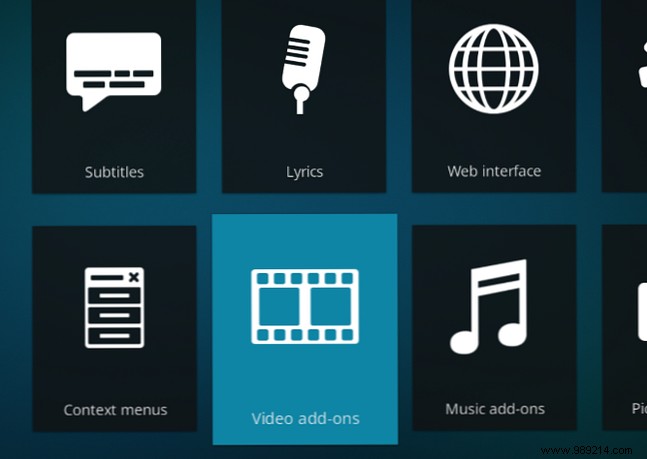
Discover more, such as FunnyOrDie, comedy channels, podcasts, and TED Talks, via My Add-ons > Add-on Repository (ensure the Kodi repository is enabled). Then browse Add-ons > Download > Video Add-ons and other categories.
Own your movies or box sets? Easily add them to Kodi. From the Movies (or TV Shows, Music) screen, select Add Videos, then Browse to your media folder and confirm. Kodi will automatically scrape metadata like descriptions and posters if online.
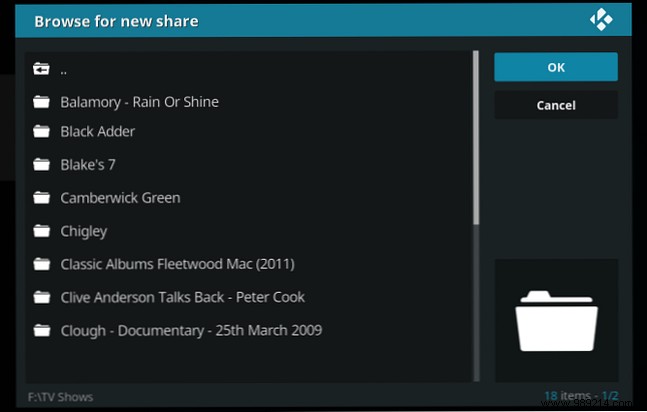
For more space, connect external storage. On PCs, use FTP to transfer files. For Android boxes, Raspberry Pi (with OSMC/OpenELEC), or similar, plug in a powered USB drive or external HDD/SSD. Low-power devices often need external power for drives. Once connected, browse to it in Kodi as above.
No USB ports? Stream from your local network, like a PC or NAS device. Ensure the source is network-visible (NAS is designed for this; for Windows shares, check our Windows network sharing guide).
DRM on purchased videos may restrict playback—learn more about DRM here.
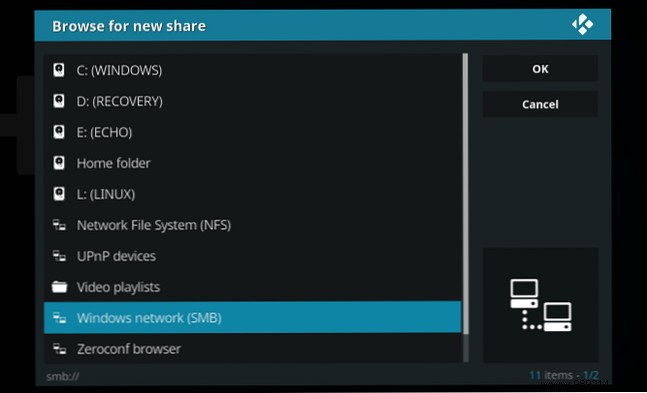
To add: Go to Movies > Add Videos, browse to the network share, select it, and add the path.
The free-for-all era is over, but Kodi remains exceptional. Enjoy video, audio, TV, movies, music collections, podcasts, and photos legally by:
This works on PCs, HTPCs, Fire Sticks, game consoles, Android boxes, or Raspberry Pi. For the best experience, follow our Kodi setup tips for beginners.
