As a long-time enthusiast of home streaming setups, I've tested the Amazon Fire TV Stick extensively. This compact powerhouse, complete with its Alexa Voice Remote, delivers access to countless free and premium streaming apps, making it a top rival to devices like Google Chromecast (7 Things You Didn't Know You Could Do With a Chromecast).
But if you crave more flexibility, installing Kodi—the versatile open-source media center—unlocks a universe of add-ons alongside services like TuneIn Radio, Netflix, and Amazon Prime Video (availability varies by region).
Fire TV Stick with Alexa Voice Remote Buy Now on Amazon $39.99
Best of all, sideloading Kodi onto your Fire TV Stick from Windows, macOS, or Linux is straightforward. Follow this proven guide to transform your device into the ultimate media hub—think of it as a modern take on classics like Windows Media Center alternatives.
Plug your Fire TV Stick into an HDMI port on your TV. Using the remote, navigate to Settings > My Fire TV > Developer Options.
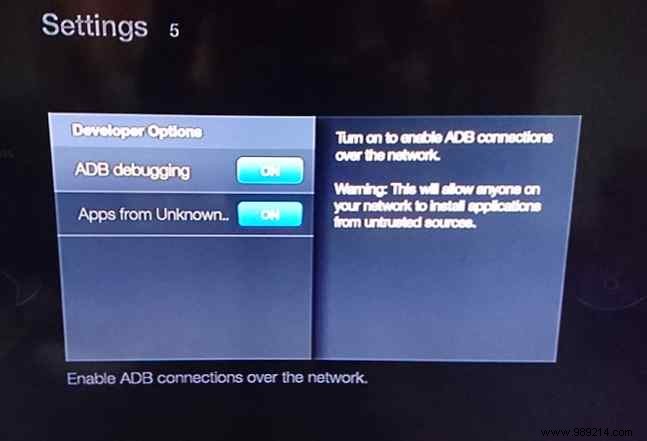
Enable Apps from Unknown Sources (confirm the warning by selecting Turn On) and ADB Debugging.
Grab a pen: note your device's IP address from Settings > My Fire TV > About > Network.
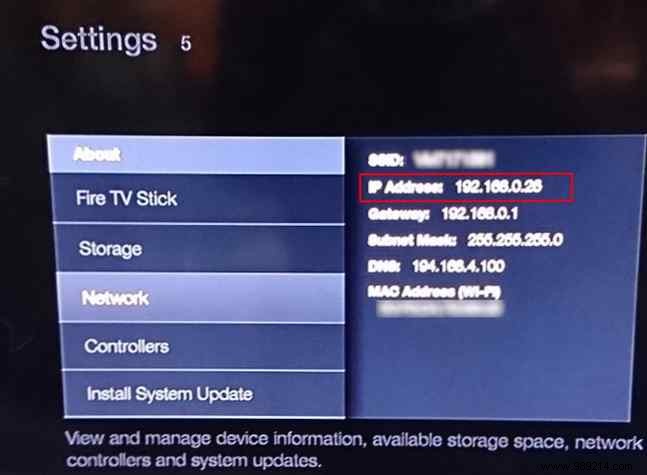
Note: Ensure your Fire TV Stick is connected to your Wi-Fi network first.
Download the ARM version of Kodi APK from the official site: kodi.tv/download (select Android > ARM).
Next, get adbLink from jocala.com—a user-friendly tool for wirelessly pushing APKs via ADB (works great on Fire TV Stick and Nvidia Shield).
Install and launch adbLink.
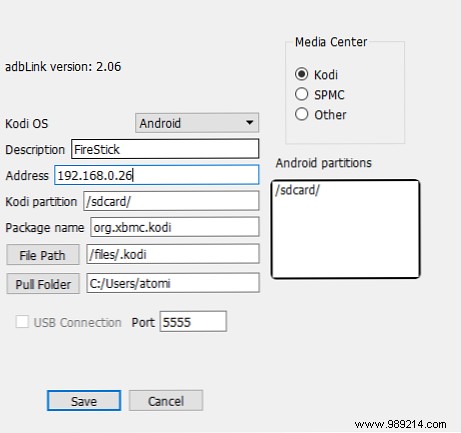
Click New, name your device, enter the IP address, and Save.
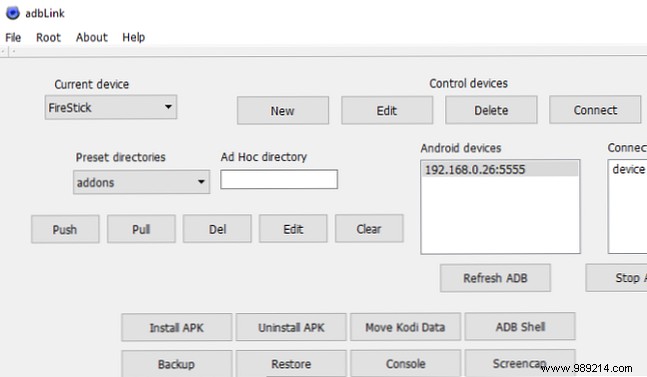
Hit Connect. Select your device, click Install APK, choose the Kodi file, and confirm. Once complete, Kodi appears in your apps list!
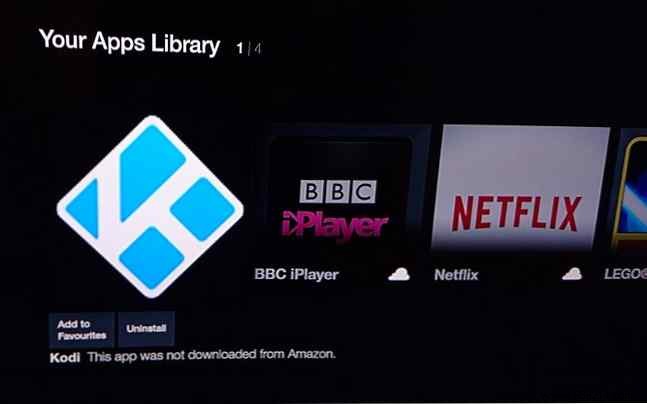
If you prefer skipping the computer, enable Apps from Unknown Sources in Settings > My Fire TV > Developer Options (Is it safe? Learn more).
From the home screen, search for and open Downloader (or ES File Explorer if available). Add favorite: https://kodi.tv/download, name it "Kodi", and save.
Open the new Kodi favorite, navigate to Android > ARM version, and select Download via the browser option.
Once downloaded, choose Install and grant permissions.
With Kodi installed, explore official repositories for safe enhancements—avoid pirated content to stay legal and secure.
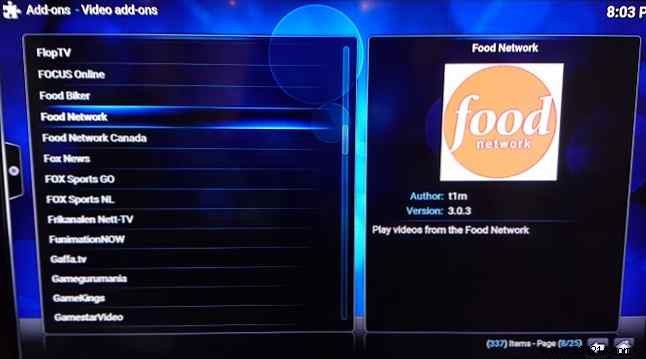
Go to Add-ons > Download > Kodi Add-on Repository. Browse video add-ons, PVR tools, and more; install your favorites.
For top picks, check our curated list of must-have add-ons. Access them via the Videos section in Kodi.
Ready for more? Dive into our beginner's Kodi setup guide to customize your setup perfectly.
