Family Encyclopedia >> Entertainment

How to Pair Your Amazon Fire TV Stick Remote: Step-by-Step Guide

If your Amazon Fire TV Stick remote has stopped working or you need to pair a replacement—or even control your TV with it—this expert guide draws from years of hands-on experience with Fire TV devices to walk you through every step reliably.

How to Pair a Fire TV Stick Remote

Pairing a new Fire TV Stick remote typically happens automatically during initial setup:

  1. Plug in and power on your Fire TV Stick.
  2. Insert batteries into the remote.
  3. The device should pair within seconds—no extra steps needed.
  4. Press the Play/Pause button to proceed with setup.

If it doesn't connect, remove and reinsert the batteries. For manual pairing, hold the Home button for 10-20 seconds until it links.

How to Pair a Replacement Fire TV Stick Remote

Replacing a lost remote or adding extras is straightforward—you can connect up to seven remotes for the whole household, including official ones from older models.

Official Fire TV Stick Remotes

To pair an official Amazon remote:

  1. Ensure your Fire TV Stick is on.
  2. Hold the Home button for 10-20 seconds. Newer remotes flash amber rapidly—release when it does; older ones require holding steady.
  3. A confirmation appears in the screen's lower-right corner.

If it fails, retry or navigate to Settings > Controllers & Bluetooth Devices > Amazon Fire TV Remotes > Add New Remote to scan.

How to Pair Your Amazon Fire TV Stick Remote: Step-by-Step Guide

Third-Party Fire TV Stick Remotes

Top third-party remotes pair similarly by holding Home, sometimes up to 60 seconds after restarting the Stick. For others, enter pairing mode (per manual), then check Settings > Controllers & Bluetooth Devices > Game Controllers or Other Bluetooth Devices.

How to Pair Your Amazon Fire TV Stick Remote: Step-by-Step Guide

Use Your Smartphone as a Fire TV Stick Remote

Turn your phone or tablet into a remote via the free official Amazon Fire TV app (Android/iOS)—ideal for lost remotes. It uses Wi-Fi, so connect both to the same network.
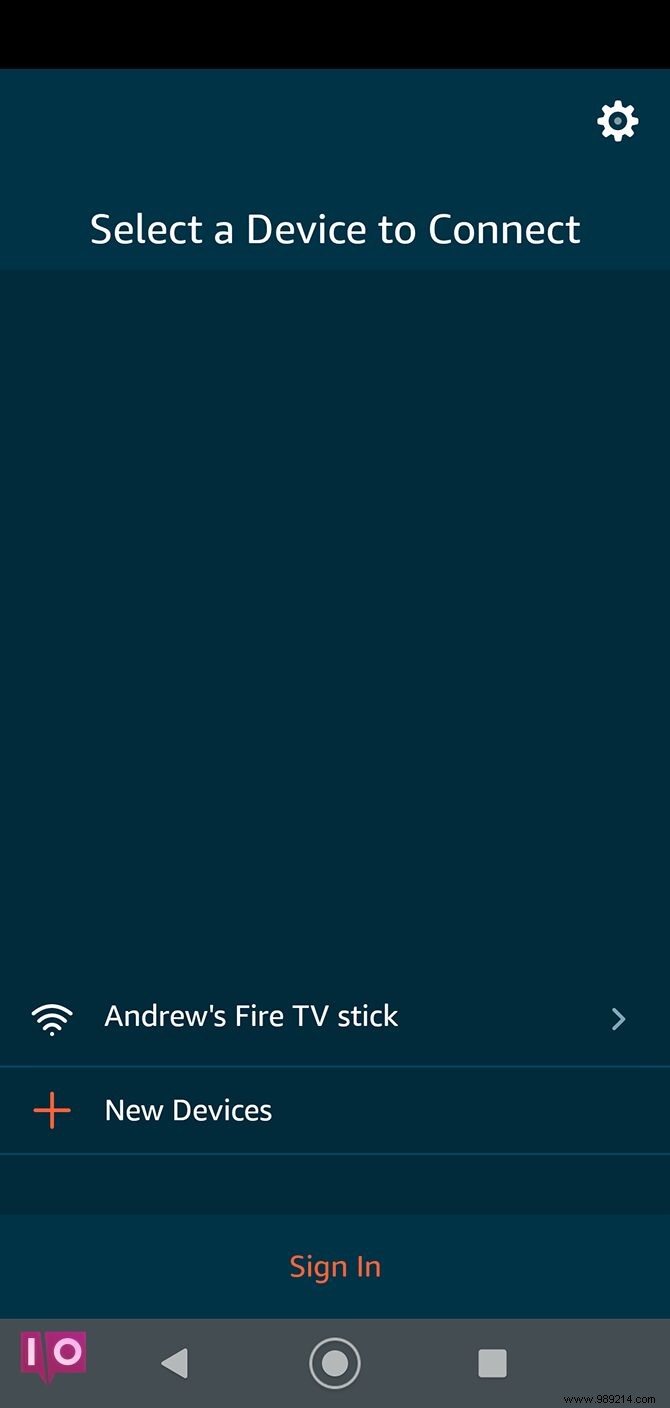
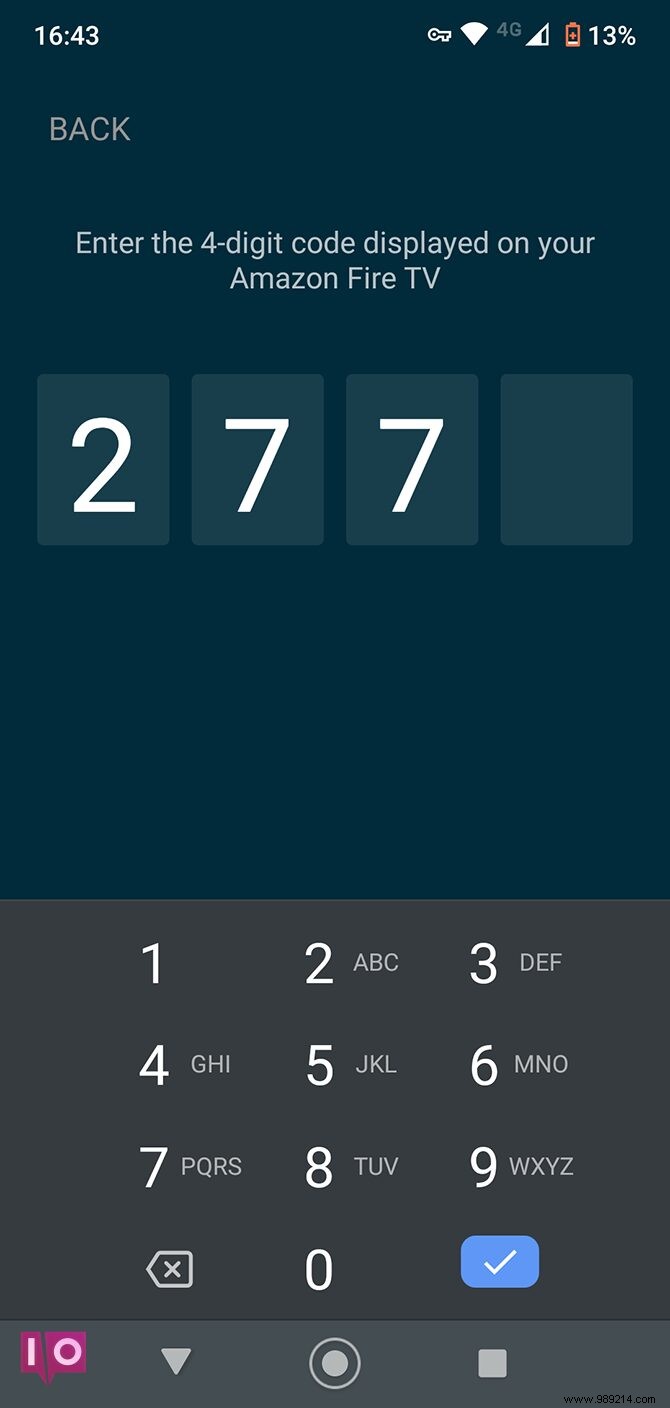
  1. Power on the Stick and launch the app, logging in.
  2. Select your Fire TV Stick from the list.
  3. Enter the four-digit code shown on-screen.
  4. You're set—re-login per session, but no re-code needed.

How to Pair Your Amazon Fire TV Stick Remote: Step-by-Step Guide How to Pair Your Amazon Fire TV Stick Remote: Step-by-Step Guide How to Pair Your Amazon Fire TV Stick Remote: Step-by-Step Guide

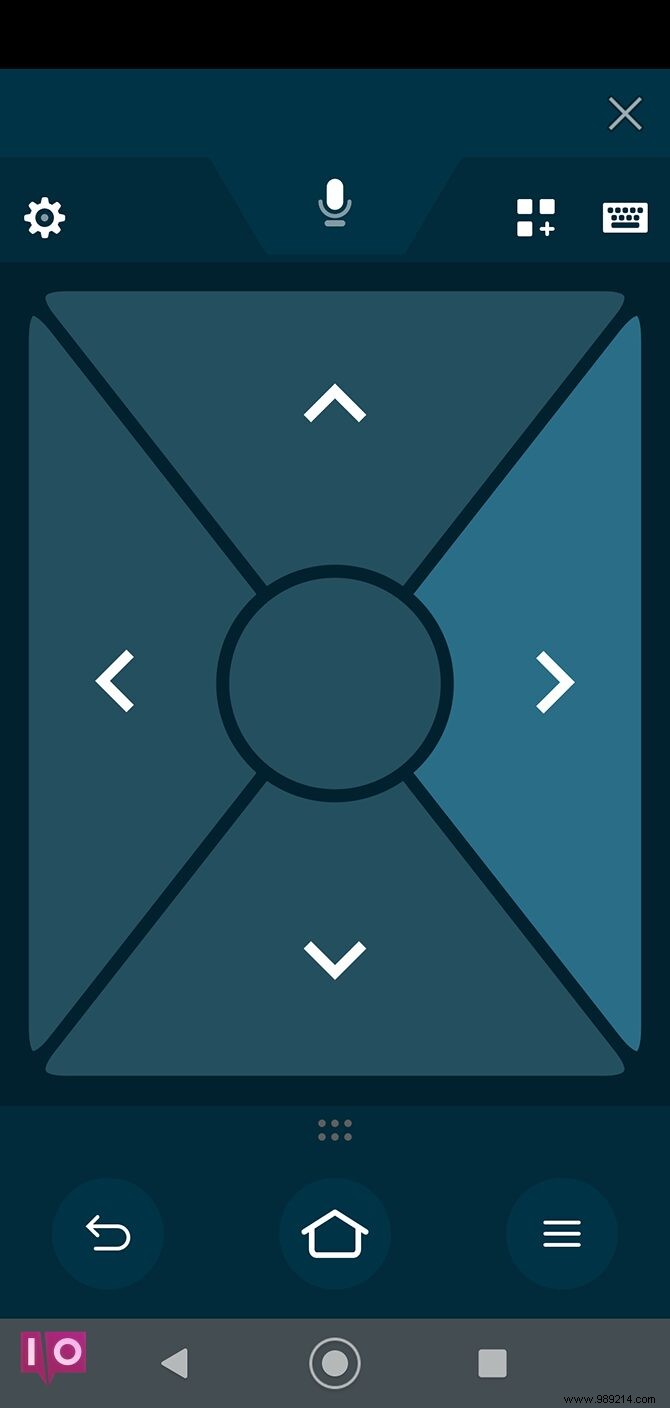
Use the D-pad or switch to swipe gestures in settings. For Alexa, hold and drag the mic; tap the keyboard for precise searches.

Pair Your Fire TV Stick Remote with Your TV

Newer remotes with volume buttons work with HDMI-CEC TVs for power and volume control, reducing remote clutter.

Enable HDMI-CEC (or brand-specific name like Anynet+ or Bravia Sync) in TV settings, then on Fire TV Stick: Settings > Display & Sounds > HDMI-CEC Device Control.

How to Pair Your Amazon Fire TV Stick Remote: Step-by-Step Guide

  1. Go to Settings > Equipment Control > Manage Equipment.
  2. Select TV > Change TV.
  3. Follow prompts for auto-detection or manual brand selection.

Unpair a Fire TV Stick Remote

To remove a remote:

How to Pair Your Amazon Fire TV Stick Remote: Step-by-Step Guide

  1. Navigate to Settings > Controllers & Bluetooth Devices, selecting the category.
  2. Highlight the device, press the three-line menu on your main remote.
  3. Confirm Forget this Device.

Note: Can't unpair your only remote.

Master Fire TV Stick Remote Pairing

You're now equipped to handle any Fire TV Stick remote scenario. The device supports mice, keyboards, and game controllers too—check our recommendations for the best Fire TV Stick game controllers.


How to Pair Your Amazon Fire TV Stick Remote: Step-by-Step Guide