Whether you're upgrading from a standard PlayStation 4 to a PS4 Pro to leverage your 4K TV or simply moving to another standard PS4, transferring your data is essential. This includes save files, user accounts, capture gallery, and apps.
Fortunately, the process is straightforward, requires no proprietary cables, and handles hundreds of gigabytes efficiently.
Follow this proven method, based on hands-on experience with multiple PS4 transfers, to get everything set up quickly.
Transferring data between PS4 consoles requires only Ethernet cables, regardless of your hardware. With a wireless router, one cable suffices. For wired setups, connect both consoles via Ethernet.
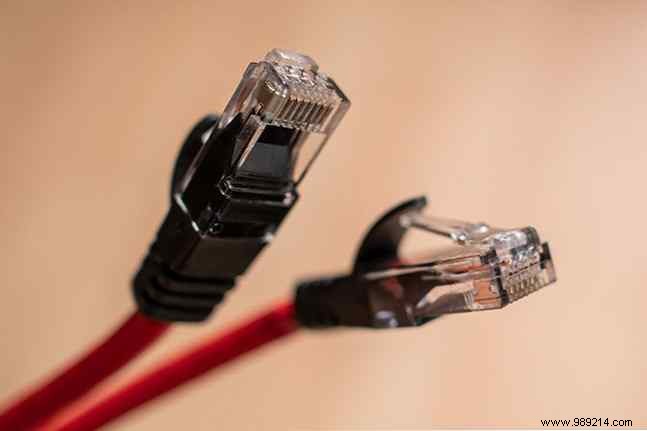
Any standard Ethernet cable works—I've successfully used a Cat6 crossover cable (originally for Xbox 360s), and Cat5e or Cat5 cables perform equally well.
Both consoles need internet access to initiate the transfer. Data doesn't move over the internet; it's solely for Sony's servers to activate your new PS4 as primary.
The transfer uses the Ethernet cable directly, so speed is unaffected by wireless vs. wired. Ensure:
Most users opt for wireless networks, needing just one Ethernet cable.
Unbox and set up your new PlayStation 4 as usual. Connect to a display if needed.
Power on, follow prompts, and connect to Wi-Fi (or Ethernet for auto-detection).
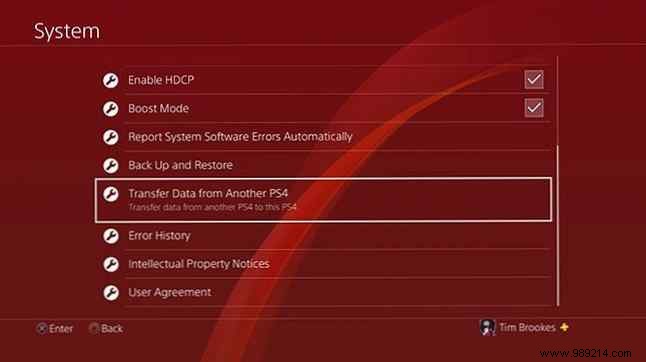
From the home screen, navigate to Settings > System > Transfer Data from Another PS4.
Sign in to PlayStation Network if prompted, and confirm your new console as primary.
Important: Only one primary PS4 per account. Deactivating the old one restricts access to purchases, themes, and PS Plus games on other consoles.
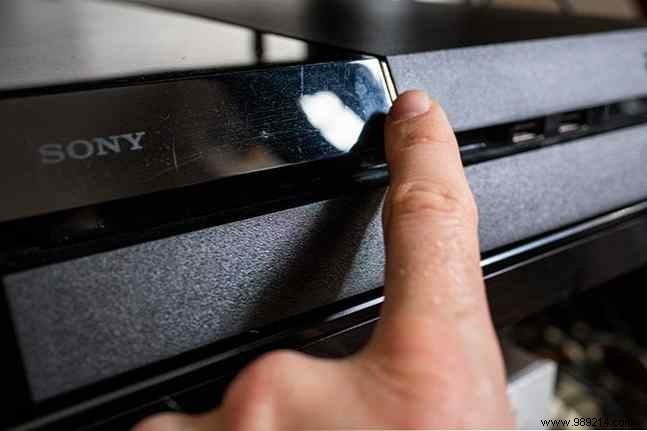
Power on your old PS4 when prompted and select Next. No display required. The new console will detect it—press the old PS4's power button for one second until it beeps.
Connect via Ethernet if not already wired. Follow on-screen instructions; the old PS4 restarts. If connected to a display, you'll see a transfer notice.
Select items to transfer: apps/games, saves, capture gallery, themes, settings. Check new console's post-transfer space.
Expect a time estimate—mine was 79 minutes for 450GB.
Optionally activate as primary for other accounts (otherwise, old PS4 remains primary for them).
Select Start Transfer. Both consoles reboot, showing a progress bar.
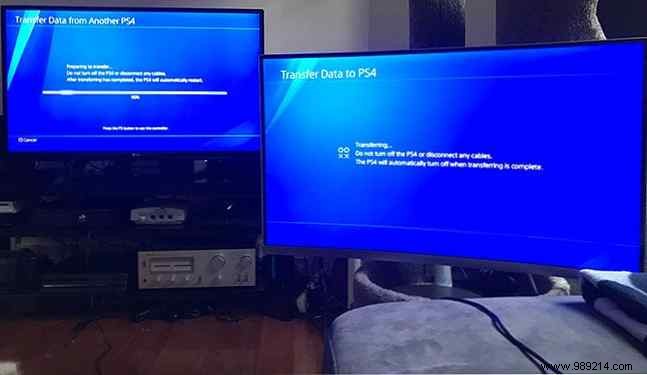
Initial estimates may inflate (mine said 18 hours but finished in 80 minutes). Users report 9 hours for 500GB. Use your best cable (e.g., Cat6) for optimal speed.
Simply move your external drive from old to new PS4—it works seamlessly. Direct HDD-to-HDD transfers aren't possible due to PS4's encrypted file system (incompatible with PC/Mac).
For USB transfers, copy capture gallery via Settings > Storage, then reinstall apps.
Use a FAT32 or exFAT-formatted USB drive (avoid NTFS or macOS journaled).
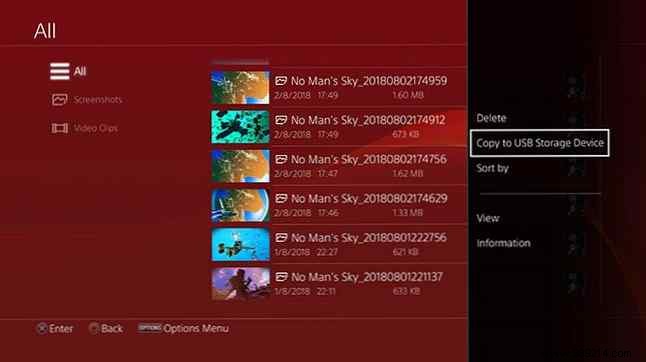
Go to System > Storage > Capture Gallery, press Options, and select Copy to USB Storage Device.
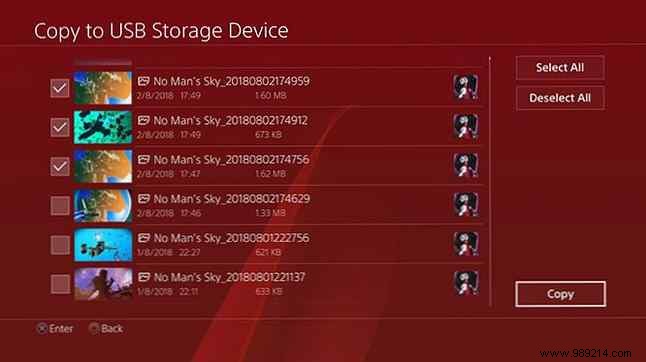
Select items, choose drive if multiple, and copy. Note the folder structure, then remove drive—no safe eject needed.
Note: This method doesn't transfer saves or apps.
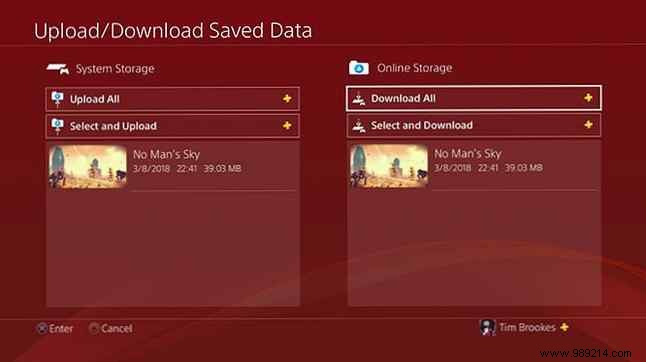
Full transfers include all saves automatically. PS Plus subscribers get cloud backups—sign in to access on any console.
Manually sync via Options > Upload/Download Save Data per game.
Your transfer is complete.
Enable Boost Mode in Settings > System for enhanced performance in most PS4 games.
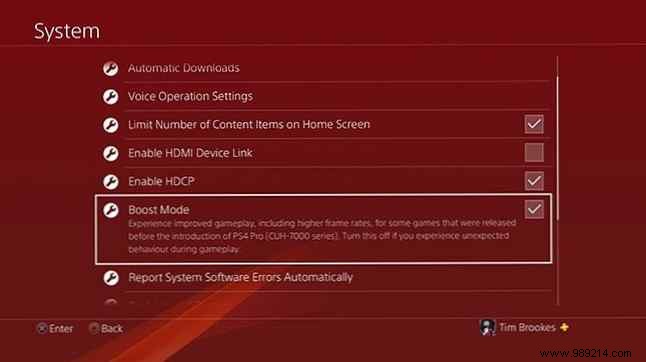
Many titles offer PS4 Pro optimizations like 4K textures, better AA, or higher frame rates. Disable if instability occurs (common in older games).

Check optimized game lists—first-party titles like Uncharted and God of War shine brightest.
