As a budget-friendly streaming powerhouse, Google Chromecast transforms any TV into a smart entertainment hub. Whether you're new to media streamers or choosing it over Roku or Apple TV, setup is straightforward. Our team has configured hundreds of these devices—follow this expert guide to get streaming in minutes.
We'll walk you through unboxing to first cast, ensuring a seamless experience based on official Google requirements.
Before starting, confirm you have everything to avoid hiccups. Most users already own these, but double-check:
Ready? Proceed to setup.
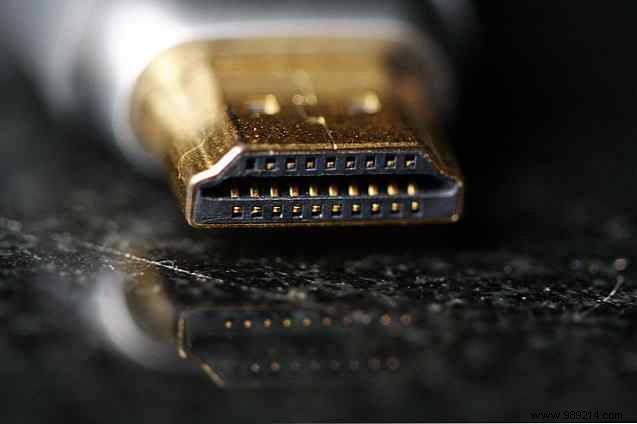
Unbox your Chromecast and insert it into an available HDMI port (HDMI 1 or 2). Use the included HDMI extender if space is tight.
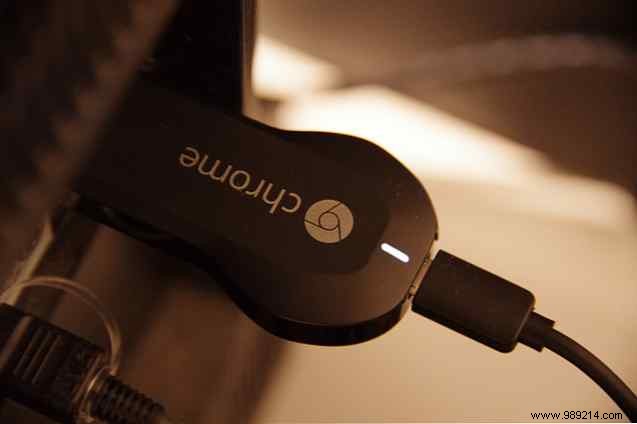
Power it via TV USB or wall adapter. The LED will blink. For factory reset, press and hold the button 25+ seconds. Switch TV input to the Chromecast port—you'll see the setup screen shortly.
Hardware connected? Now configure via software. Use any compatible device:
Desktop (Windows/Mac): Visit Chromecast setup page to download the client.
Mobile (Android/iOS): Install the Google Home or Chromecast app from your store.
The app scans for your Chromecast (shown as 'Chromecast-XXX' on TV). Select it to pair.
Verify the 4-digit code on screen. Name your device (e.g., 'Living Room TV') for easy ID, especially with multiples.
Enable Guest Mode (default) for password-free casting, or disable for privacy.
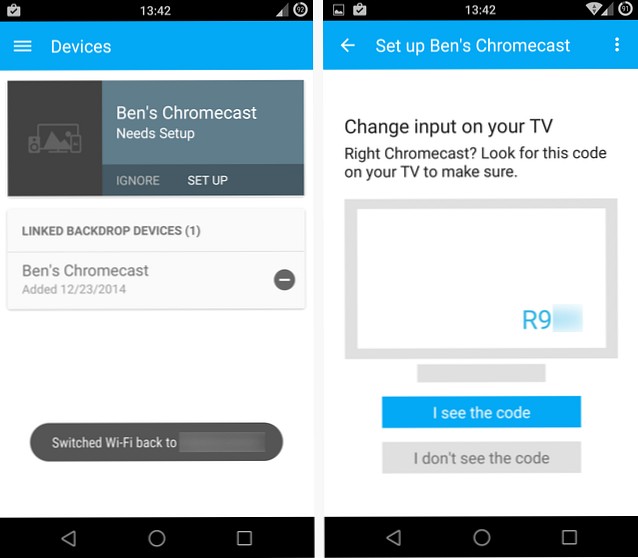
Connect to Wi-Fi by entering your password. Your mobile may briefly disconnect—normal behavior. Updates may apply post-setup.
Open the app: Desktop clicks 'Settings'; mobile taps device gear icon.
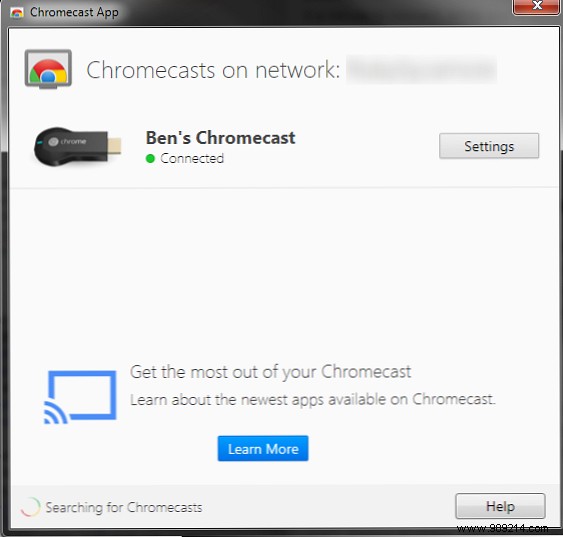
Adjust name, Wi-Fi, timezone. Reset/restart if needed. Mobile-exclusive: Backdrop—display photos or web art when idle, like a dynamic screensaver.
Check for Google perks like service trials or Play Store credits. In the app, tap menu (three dots) under device settings. Desktop: Use online Chromecast offers portal.
Current examples: Hulu Plus/Mubi week trial, Crunchyroll Premium 30 days, free Google Play movie rental—ideal for testing.
Spot the Chromecast icon in apps like YouTube, Netflix, Pandora, Spotify, or Twitch—tap to stream to TV. Your device can then multitask.
Mobile screen mirroring (beta): Cast Screen from app menu for games or collaboration.
Desktop: Chrome extension casts any tab—websites, videos, slides.
Explore Google's Chromecast app directory for more (music, games, productivity).
Your Chromecast is ready! It's evolved far beyond launch, perfect for non-smart TVs or supplementing consoles.
Maximize with tips: Make it a smart media hub or creative uses. Keep updated via app.
What's your top Chromecast trick? Share questions below—we're here to help.
