As a leading Android TV streaming device, the NVIDIA SHIELD TV stands out for cord-cutters seeking top-tier performance in 4K HDR streaming, gaming, and more. Whether you're ditching cable or upgrading your setup, our hands-on expertise with countless devices confirms it's among the best. This comprehensive guide, drawn from years of testing streaming hardware, walks you through unboxing, setup, customization, app installation, and troubleshooting.
NVIDIA SHIELD TV Gaming Edition | 4K HDR Streaming Media Player with GeForce NOW Buy Now On Amazon $169.88
Follow these steps for instant access:
Everything below is detailed for deeper control.
Upon unboxing your SHIELD TV, you'll find:
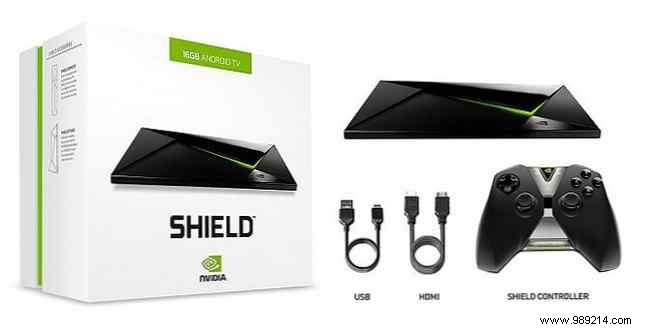
Unlike the 2015 model, the remote uses two included CR2032 coin cell batteries—no charging cable needed.
The back features power, two USB ports, HDMI, and Ethernet.
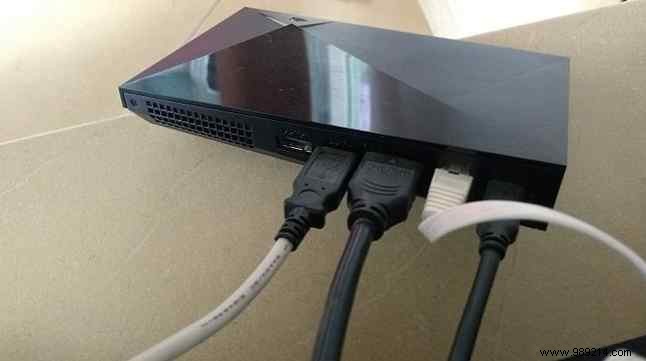
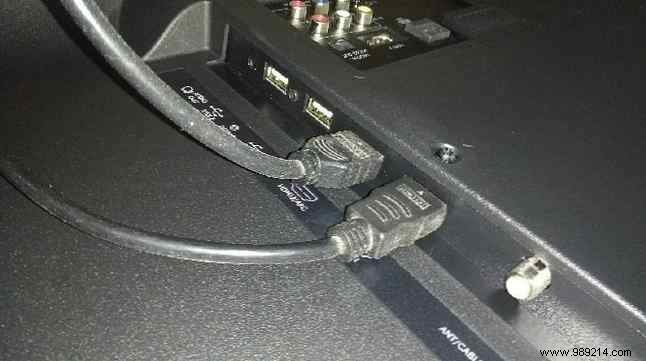
Connect HDMI (2.0 recommended; HDCP-supported TV port required; cable not included) from SHIELD to TV. Plug in the power adapter—requires wall outlet, not TV USB. Optionally, Ethernet to router or use Wi-Fi.
Switch TV input to HDMI; NVIDIA logo appears.
The wizard launches automatically. Select language (English default), connect Wi-Fi if needed, sign in with Google account for apps/games sync (recommended), accept NVIDIA terms. You'll land on the Leanback Launcher home screen.
Access via bottom of home screen. Familiar to Android users, but optimized for TV.
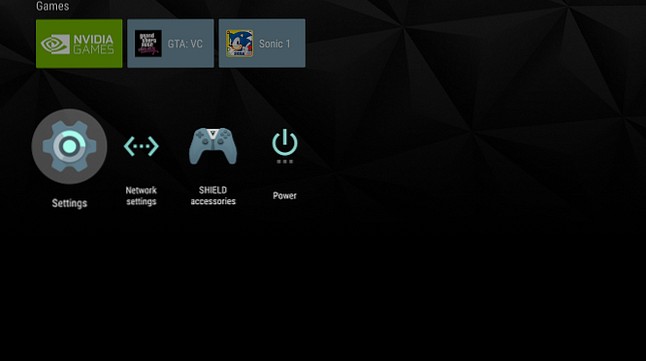
Set Resolution to your TV's max. In Power Control, enable CEC for auto-input switching.
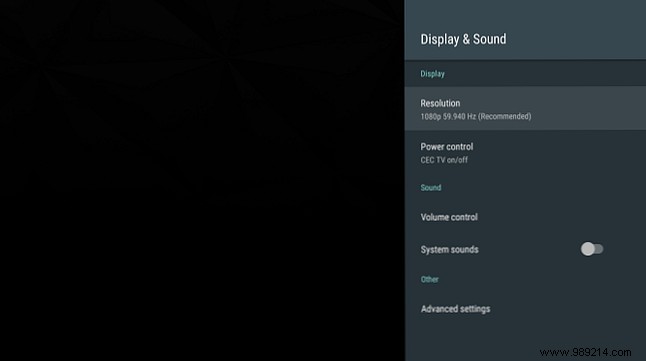
Advanced: Adjust overscan, surround sound, disable volume if preferred.
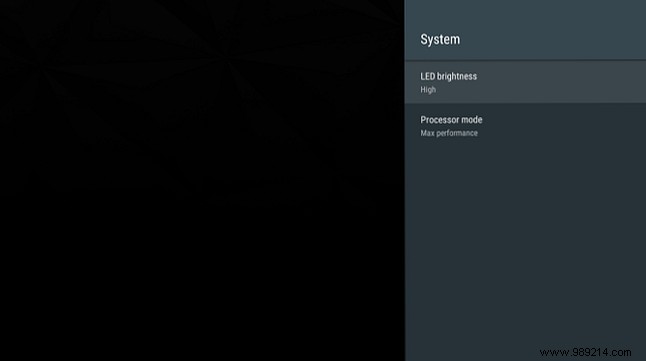
Set Processor Mode to Maximum Performance—no real benefit to Optimized.
Enable network access: Storage & Reset > Protected Storage Access > Local Network. Note credentials for PC/Mac access.
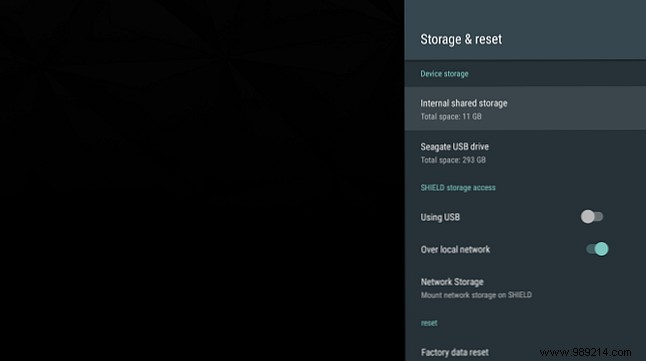
For NAS: Storage & Reset > Protected Storage Access > Network Storage.
16GB model benefits most (Pro: 500GB). Format USB drive/HDD as internal storage—encrypts it for SHIELD only.
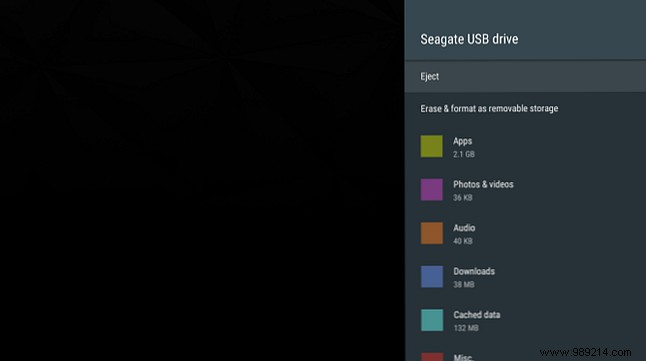
Connect USB, go to Settings > Storage & Reset > Protected Storage Access, select drive, Set as Internal, Migrate Now. Use as regular USB for files only otherwise.
Three rows: Recommendations (hide unwanted), Apps/Games.
Hide recs: Settings > Preferences > Home Screen > Recommendations Row.
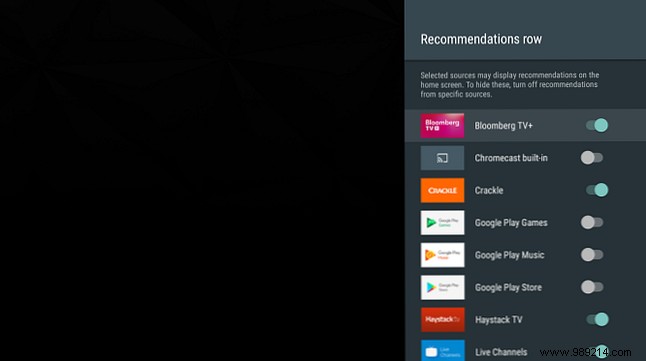
Reorder apps: Apps & Games Row. Sort by recent use.
Disable bloat: Settings > Device > Apps > System Apps, select Disable.
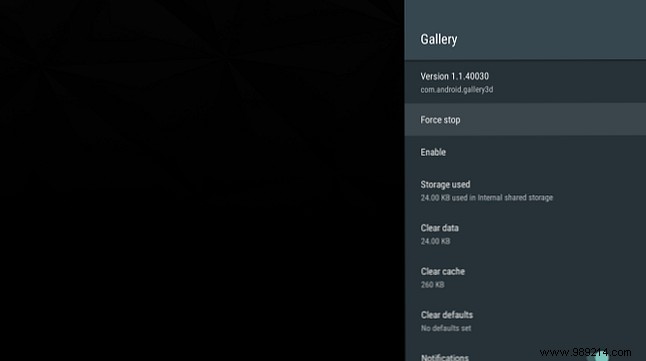
Rooting required for full removal (advanced).
Supports mice, keyboards, controllers, etc. Essential: USB mouse/keyboard for sideloaded apps.
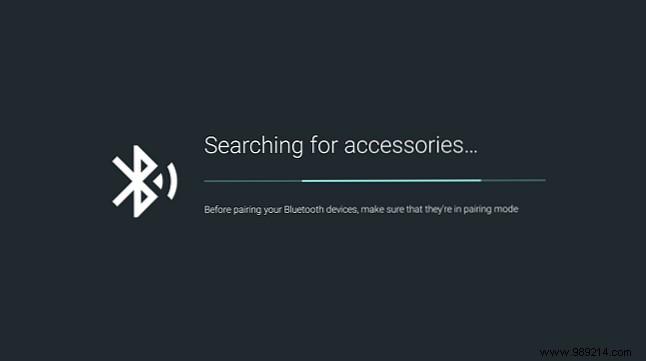
Settings > Remote & Accessories > Add Accessory.
Browse categories or voice search. Install via Select > Install.
In Games row; $7.49/month GeForce NOW. Categories like Play Store.
GameStream: Enable in GeForce Experience on PC (same network).
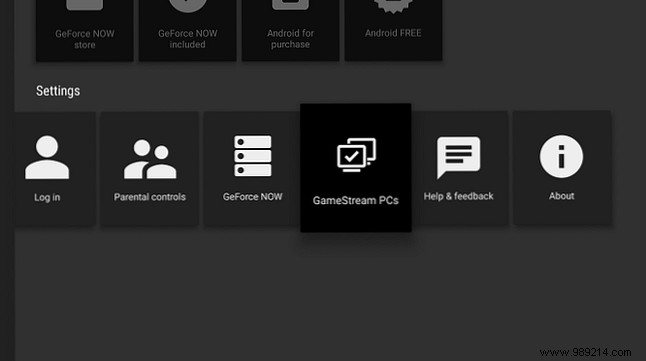
Download: GeForce Experience
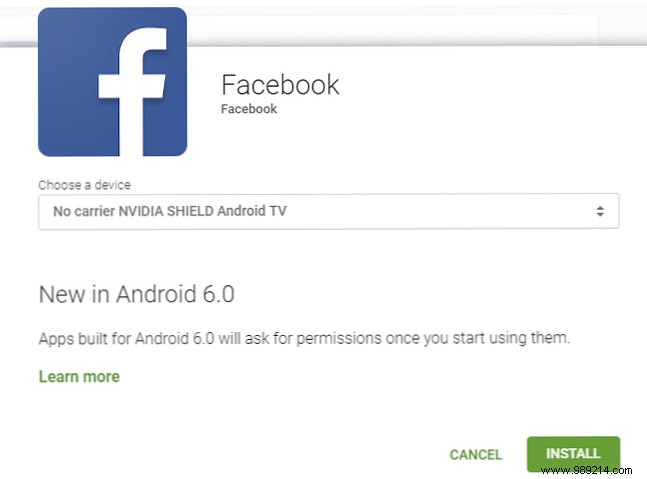
From browser, install to SHIELD via Google account.
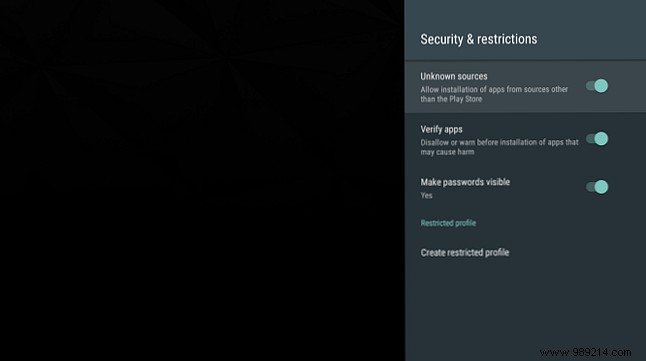
Enable Settings > Personal > Security & Restrictions > Unknown Sources.
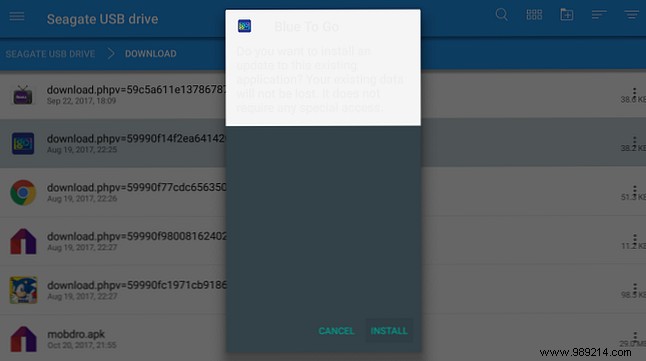
APK via USB/browser; install. Use mouse/gamepad for nav.
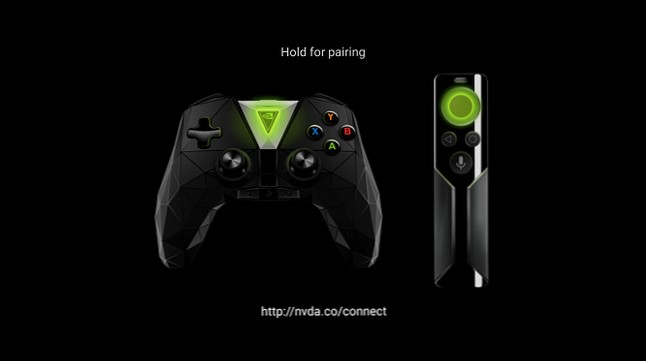
Replace CR2032 batteries (remote) or charge (controller). Resync: Home > SHIELD Accessories > Pair Accessory.
Whitelist GeForce Experience in antivirus; ensure 5GHz Wi-Fi, updates.
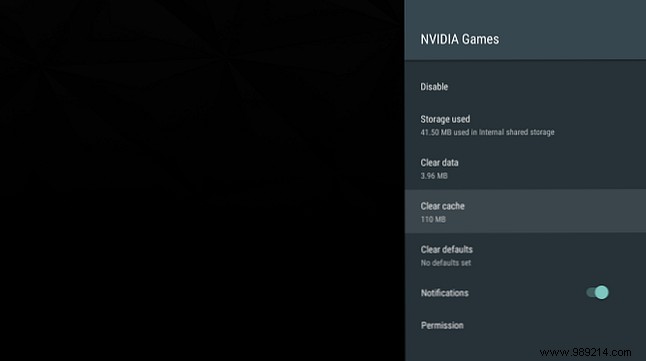
Clear cache: Settings > Apps > NVIDIA Games > Clear Cache.
File explorer to Local \ NVIDIA \ App \ OTA, delete, reboot.
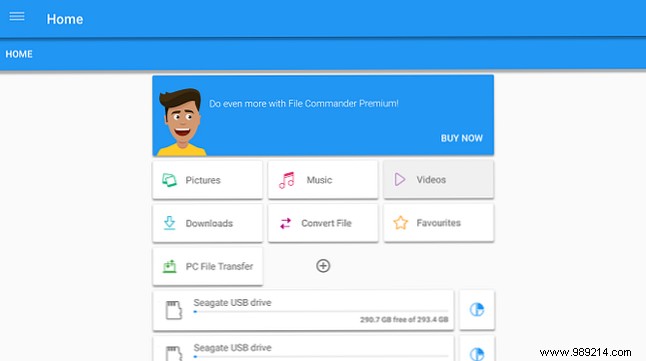
Power cycle: Unplug 10s.
Your customized SHIELD is ready for streaming and gaming. Questions? Comment below—our team is here to help based on real-world experience.
