Control Spotify playback effortlessly from your phone on computers, smart speakers, or other devices. As a tech enthusiast with years of experience using streaming services, I've streamlined this process for seamless music control.
What You'll Need to Set Up Your Spotify Remote
To get started, ensure you have:
- An iOS, Android, or Windows phone with the Spotify app installed.
- A playback device like Chromecast, Google Home, Amazon Echo, or a computer running Spotify via web browser or desktop app.
- A shared Wi-Fi connection.
Step-by-Step: Control Spotify from Your Phone
Follow these easy steps to use your phone as the remote:
- Open the Spotify app on your phone and connect to the same Wi-Fi network as your playback device.
- Play your chosen song on the phone.
- If a device pop-up appears, select it. Otherwise, go to the Now Playing screen, tap Available Devices, and choose your preferred device.
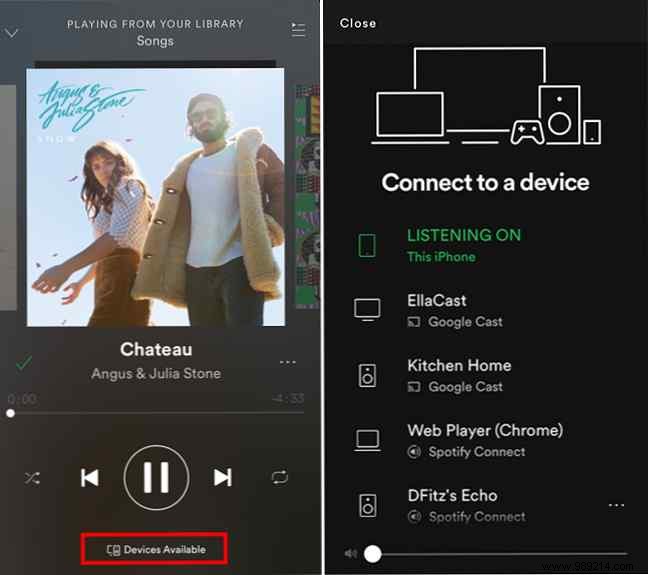
From your phone, browse playlists or albums, skip tracks, adjust volume, and more—just like a full remote control.
You can also initiate playback from your computer:
- Open Spotify on both your phone and computer (works with desktop and web versions).
- Sign in to the same account and ensure both are on the same Wi-Fi.
- Start playing music on your computer.
- A pop-up on your phone will show the active device, letting you take control.
Best of all, make or receive calls without pausing your music.
