Digital clutter can bog down your reading experience just like physical mess. Decluttering your Kindle library brings a fresh start, boosts productivity, and sharpens focus—backed by studies on minimalism's mental health benefits. While removing books from your Kindle device or app is simple, permanently erasing them from your Amazon cloud account takes a web browser. As experienced Kindle users and tech guides, we've streamlined the process for you.
In this step-by-step guide, we'll cover both methods to help you manage your library effectively.
To free up space on your device or app, go to your downloaded titles list, press and hold the book you want to remove, and select Remove from device. This works the same on Kindle hardware or the mobile app.
Important: This only removes the download from the device—the book stays in your Amazon account for future redownloads.
For full removal from your cloud library, use a web browser: Sign into your Amazon account and navigate to Manage Your Content and Devices. You'll see all titles associated with your account.
If you share a Family Library, you'll spot books from others labeled Shared with you. Only adult family members can delete these.
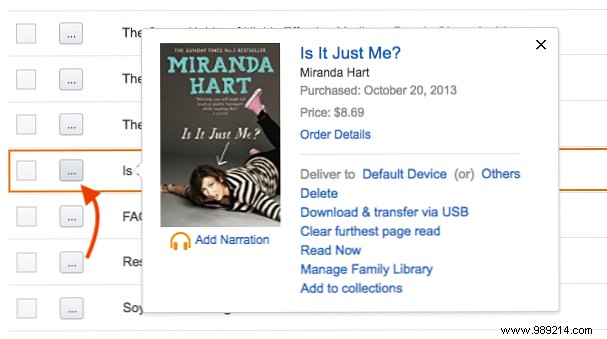
Locate the book, click the three-dot menu next to it, and select Delete.
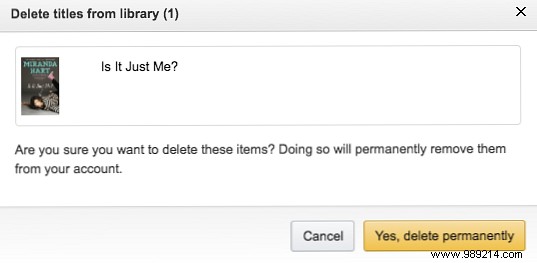
Confirm by clicking Yes, delete permanently.
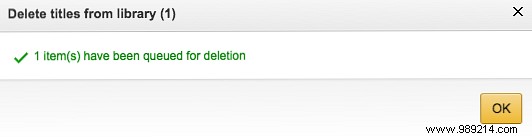
Amazon will confirm the item is queued for deletion. Note: There's no visible queue to manage, and recovering it later requires repurchasing.
Do you delete eBooks from your account or keep all purchases? Share in the comments.
