As a long-time Spotify user and tech enthusiast, I know firsthand how vital it is to protect your digital music library. Those carefully curated playlists—packed with hundreds of tracks—represent hours of effort. Losing them due to an account issue or glitch would be heartbreaking.
Fortunately, backing up your Spotify playlists is straightforward using a reliable third-party tool called SpotMyBackup. This web app securely exports your playlists for safekeeping and easy restoration.
Follow these simple steps to export your playlists:
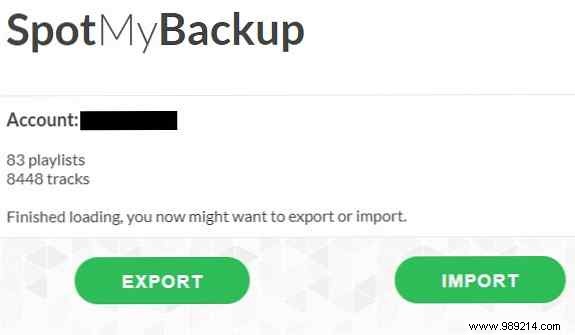
The resulting JSON file contains your playlist data, including track IDs. While it's not human-readable in a text editor, you can easily restore it later via SpotMyBackup's Import feature—upload the file to rebuild your playlists on Spotify.
Security Tip: After exporting, revoke SpotMyBackup's access for peace of mind. Log in to your Spotify account on the web, navigate to Apps > SpotMyBackup > Revoke Access. You can reconnect anytime if needed.
