Playlists are at the heart of Spotify, the world's leading music streaming service. From curated mood-based collections to your own custom mixes of favorite tracks, playlists keep your music organized and accessible.
That said, managing them efficiently isn't always intuitive. As experienced Spotify users, we've compiled these proven tips—primarily for the desktop app—to streamline your workflow. Pair them with our comprehensive Spotify Music Streaming: The Unofficial Guide for deeper insights into the platform.
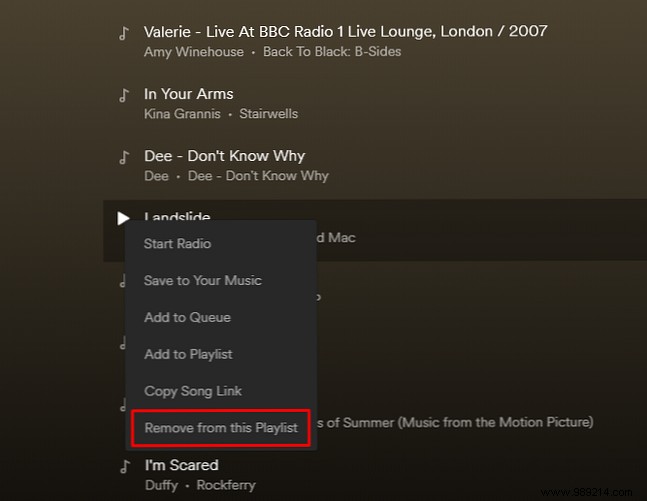
Need to remove outdated tracks or reorder in batches? Hold Ctrl (or Cmd on Mac) to select multiple songs, then drag to move or right-click and choose Remove from this playlist.
For consecutive tracks, click the first, hold Shift, and select the last—highlighting everything in between—then proceed as above.
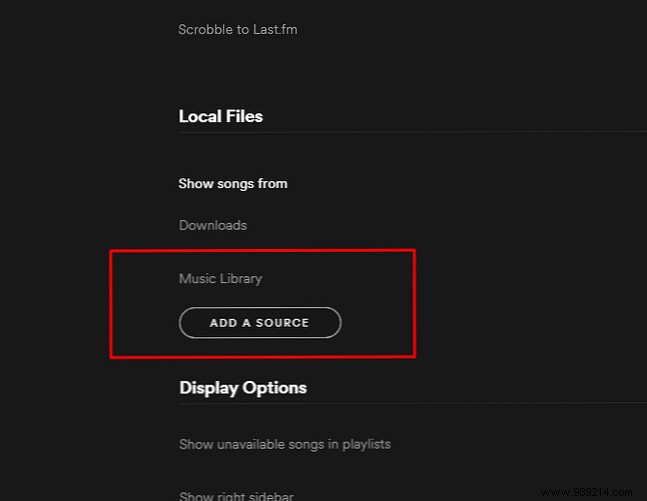
Transfer iTunes libraries seamlessly via the desktop app. Copy songs to a desktop folder, open Spotify Preferences > Settings > Add a source, and select the folder.
Uncheck other sources, create a New Playlist under File, go to Local Files in the left panel, select all with Ctrl + A (Windows) or Cmd + A (Mac), and drag into the new playlist.
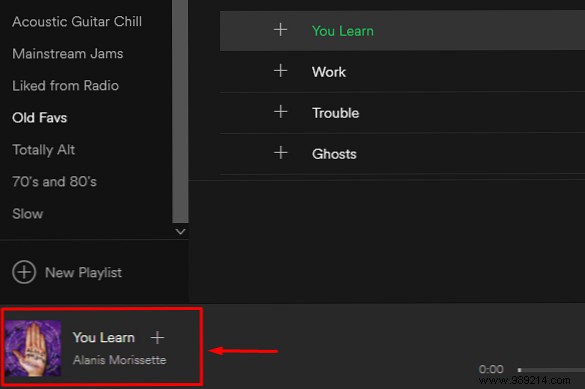
Hearing a great track and wondering its playlist? In the desktop app, click the lower half of the mini album art in the bottom-left corner (avoid the up arrow). This opens the playlist in the main panel.
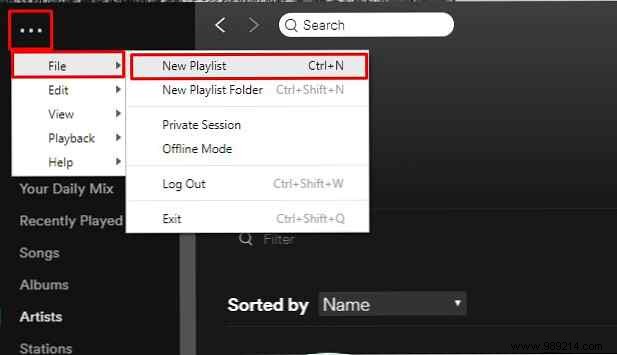
Customize without losing originals: Create a New Playlist under File, select all tracks in the source playlist with Ctrl + A (Windows) or Cmd + A (Mac), and drag to the new one. Delete the original if unneeded.
Explore Spotify's custom playlist tools like Nelson for AI-generated mixes.
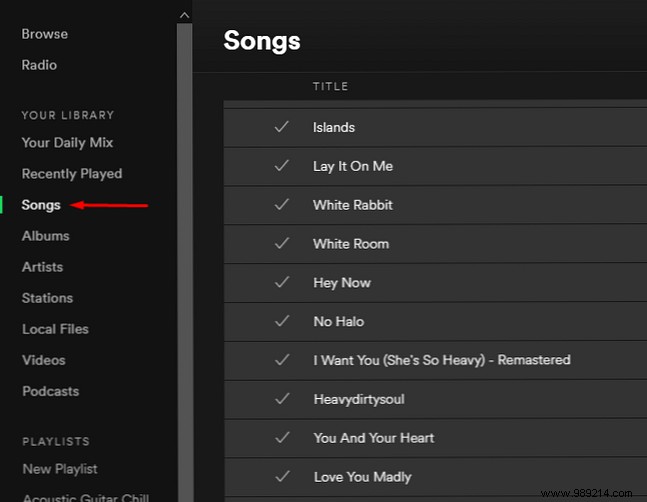
Consolidate your library: Create a New Playlist, navigate to Your music > Songs, select all with Ctrl + A (Windows) or Cmd + A (Mac), and drag into the playlist.
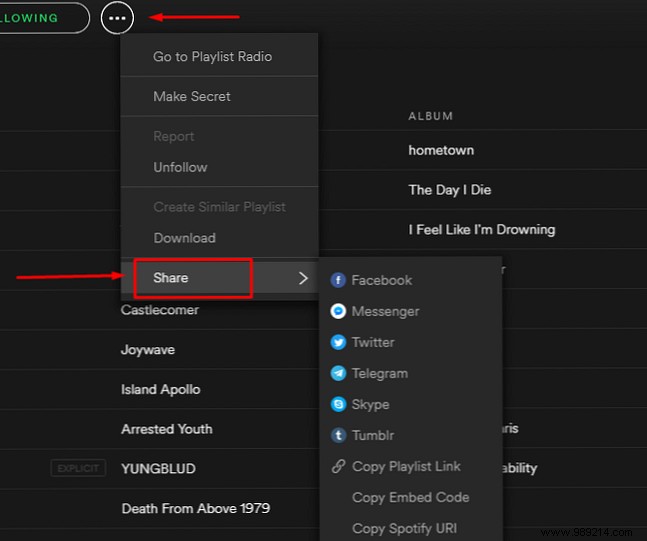
Spotify Family ($14.99/month for up to six) makes sharing easy. Right-click the playlist's three dots > Share, then send via WhatsApp or email. Recipients can download to their library.
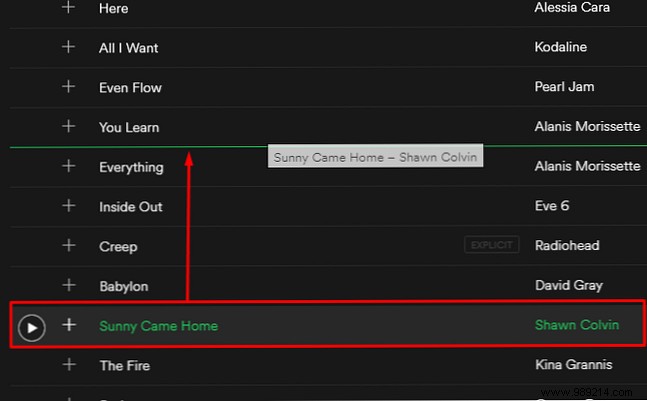
Group by artist, genre, or album: Select a track and drag up/down. A neon green line shows insertion point—the song appears below it. Release to reorder.
Unlock more with our Spotify tips and tricks guide.
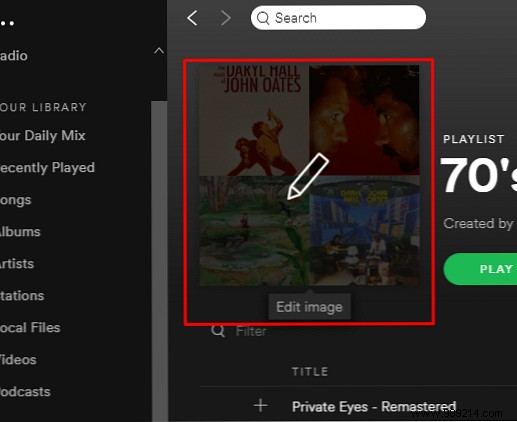
Hover over the playlist image, click the pencil icon to open Edit playlist details. Choose Choose image, select a file, and hit Save.
Design pro artwork with our playlist cover guide.
These straightforward tips will help you tame your Spotify playlists effortlessly. Share them with fellow users. For Premium details, check our Spotify Premium guide.
