As a content creator with years of experience using OBS Studio for gameplay captures, tutorials, and live streams, I can attest to its power as a free, open-source tool. Formerly Open Broadcaster Software, OBS lets you record your screen, stream to Twitch or YouTube, and more—with professional results.
New users often find the interface overwhelming, but this step-by-step guide demystifies setup, key features, and optimization for high-quality output across Windows, macOS, or Linux.
Head to the official OBS website to download the latest version for your platform. This tutorial uses Windows, but the process is nearly identical elsewhere.
OBS is 100% free and open-source—no hidden fees or premium tiers. Run the installer, then launch OBS. It offers an Auto-Configuration Wizard; run it for basics or skip for our detailed manual setup.
The main window centralizes controls for scenes, sources, audio, and output. Key sections at the bottom include:
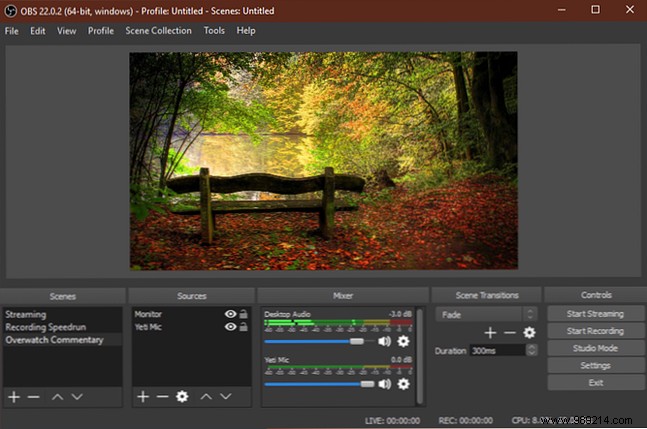
A Scene groups related Sources (like video and audio elements). Create multiple scenes for different setups—e.g., gameplay vs. webcam overlay—and switch seamlessly.
Click the + to add a scene; name it "Main" or similar (editable anytime). Preview and select elements to resize, reposition. Use the eye icon to hide or lock to prevent accidental moves.
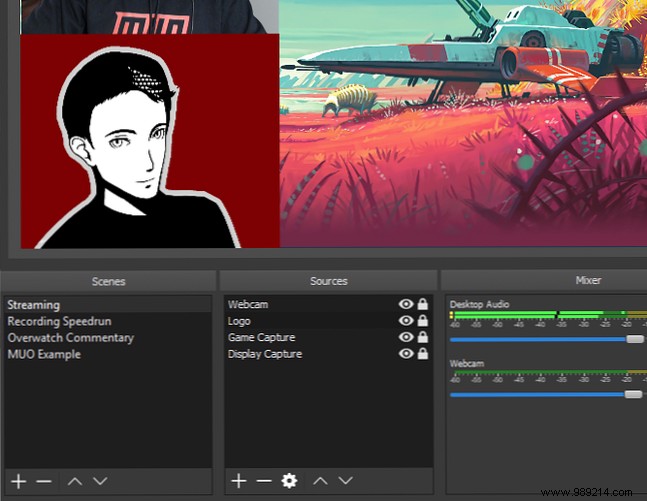
Sources are your inputs. Click + to add from categories like:
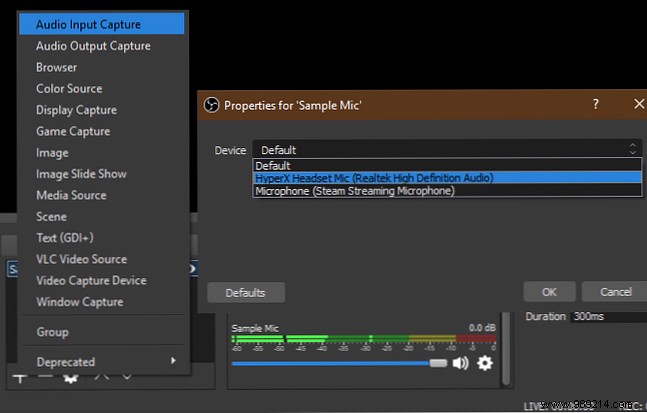
Select Create new, name it descriptively (e.g., "Headset Mic"), choose your device, and hit OK. Repeat for webcam, display, etc. Sources save for reuse.
Example: For Audio Input Capture, select your mic from the device dropdown.
Balance audio levels here. Real-time meters show activity—adjust sliders, mute with the speaker icon. Test mixes early to avoid game audio overpowering your voice.
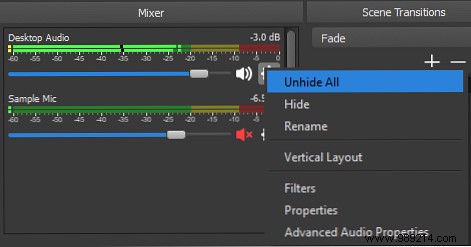
Customize switches between scenes: Fade, Cut, or others via +. Set duration for smooth pro effects.
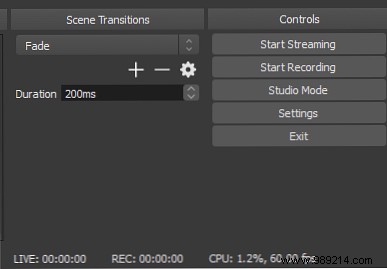
Core buttons: Start Streaming, Start Recording. Monitor FPS/CPU below. Enable Studio Mode for live edits, or access Settings.
Optimize via Settings in Controls before recording/streaming.
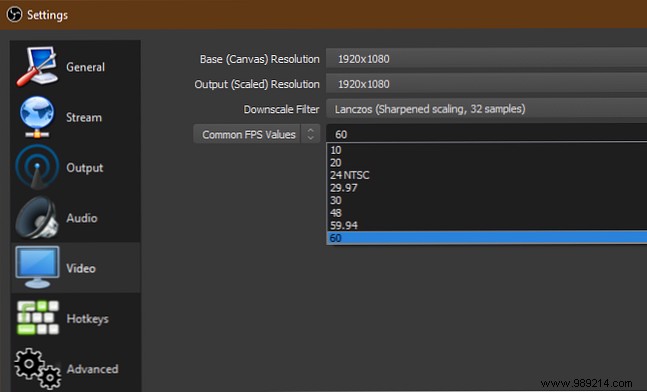
In the Video tab, set Base (Canvas) Resolution to your monitor's native res. Output (Scaled) Resolution matches for max quality or downscale to 1280x720 for smaller files.
Use Lanczos downscale filter. FPS: 60 for smooth motion, 30 for lighter loads. In Advanced, set Process Priority to High.
Output tab: Use Simple mode for starters—set Recording Quality to Indistinguishable, format to MKV or FLV, encoder to hardware (NVENC/AMF) if available, else x264.
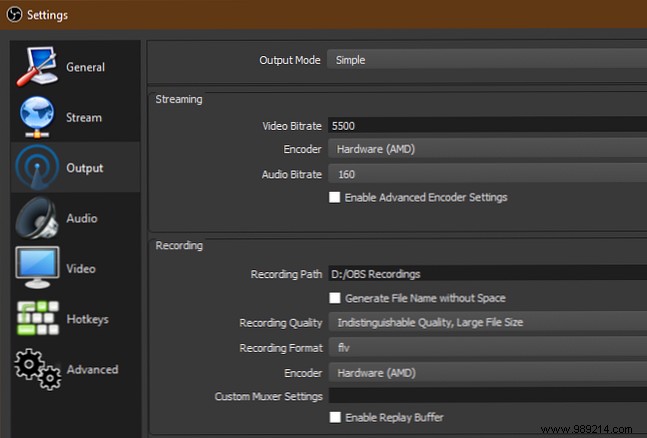
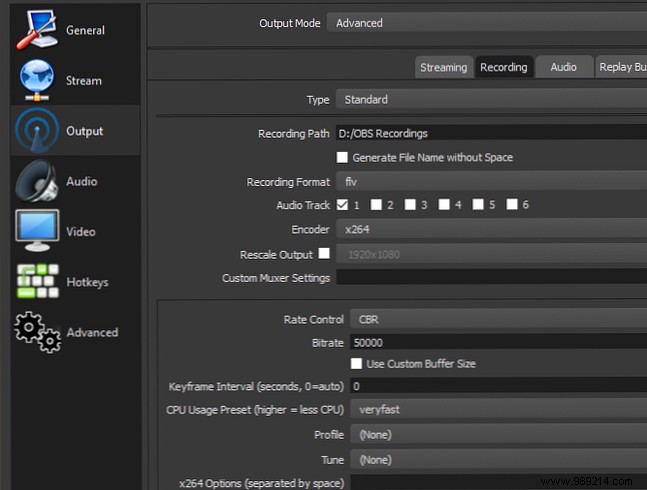
For Advanced, set Recording Path, format (MKV safest—remuxes post-crash), encoder (x264 CPU-based; NVENC/AMF GPU for less strain).
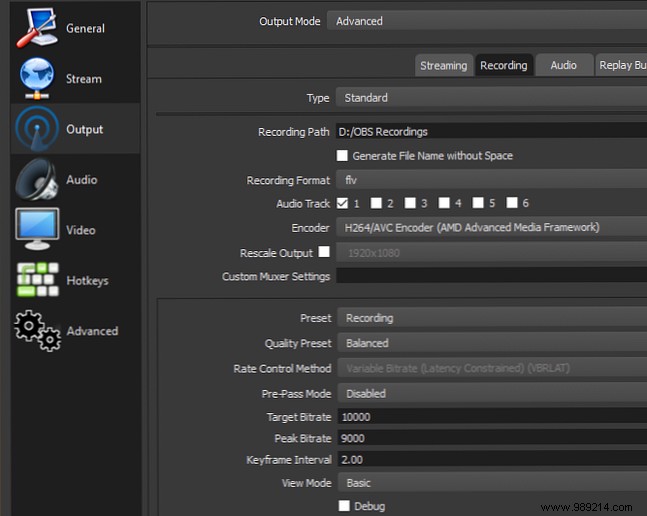
Bitrate: Crucial for quality vs. size. x264 CBR at 50,000 for 1080p60 starters. Adjust CPU preset (veryfast to ultrafast if overloaded). Test short clips.
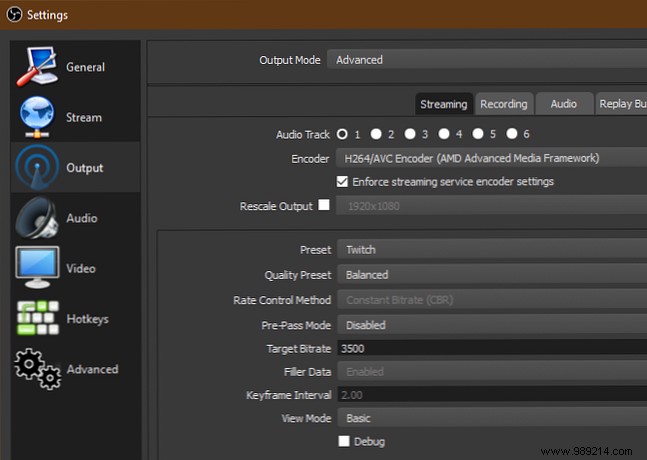
Simple mode: Bitrate 4500+ for 1080p60, 2500 for 720p30; audio 160kbps baseline.
Advanced mirrors recording but lower bitrates/res/FPS for stability.
Prep scenes/sources, hit Start Recording. Switch scenes live. Stop to save to your path. Test first!
In Settings > Stream, select service (Twitch, YouTube). Get stream key: Twitch (Settings > Stream Key), paste securely—never share!
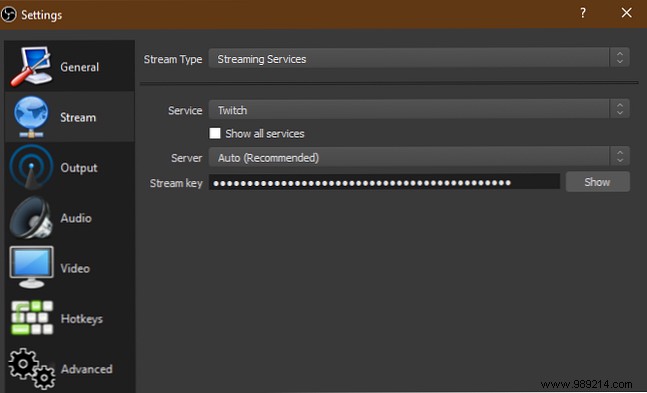
Warning: Reset key if compromised.
This covers essentials for recording and streaming. Experiment to customize—now go create standout content!
