Family Encyclopedia >> Entertainment

How to Set Up and Switch Multiple YouTube Accounts on Roku

YouTube's Roku app now supports multiple user logins, making it easy to personalize viewing for everyone in the household. Once set up, switching profiles is seamless.

Setting Up Multiple YouTube Accounts on Roku

Your Roku's YouTube app likely has one account already. Adding more is straightforward:
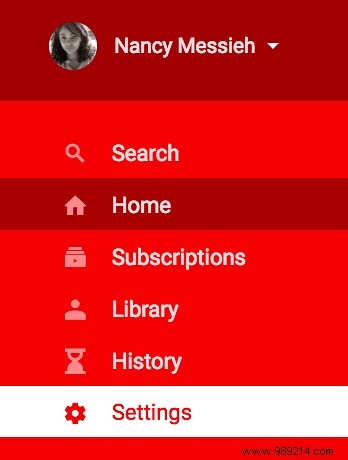
  1. Launch YouTube on Roku and open the menu by pressing the left arrow button.
  2. Scroll to and select the current username.
    How to Set Up and Switch Multiple YouTube Accounts on Roku
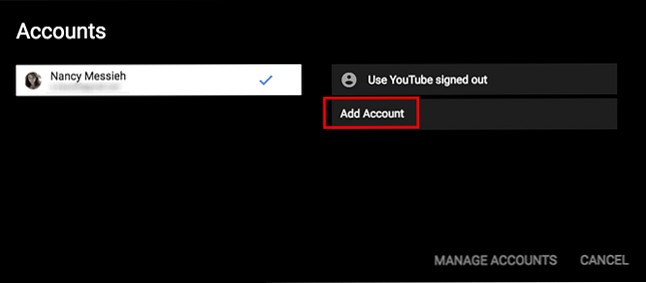
  3. Select Add account in the new window.
    How to Set Up and Switch Multiple YouTube Accounts on Roku
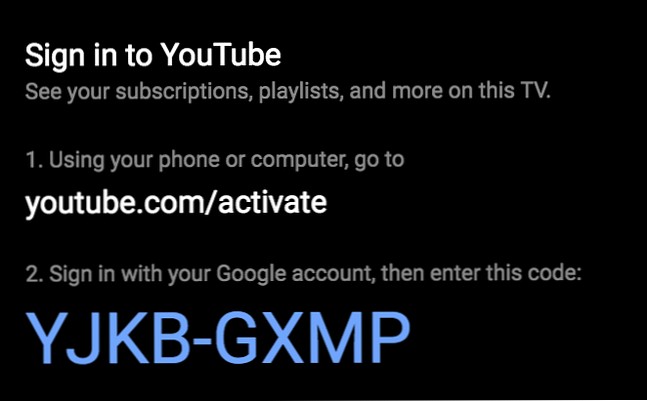
  4. Note the displayed URL (youtube.com/activate) and device-specific code.
    How to Set Up and Switch Multiple YouTube Accounts on Roku
  5. On another device, visit the URL, sign in to your Google account if prompted, and enter the code.
  6. Switch accounts anytime via the menu and profile picture.

In multi-user homes, services like Hulu and Netflix offer profiles for tailored recommendations. YouTube on Roku now matches this convenience, ensuring personalized subscriptions, watch history, and suggestions without cross-contamination from family members' mobile or web activity.

Have you tried this feature? What Roku improvements do you want next? Share in the comments.