As Roku users ourselves with years of hands-on experience customizing devices, we've mastered the four ways to add channels: official web or on-device stores, private codes, and sideloading ZIP files.
Sideloading stands out for installing any app—even unofficial ones—bypassing store limits or geo-blocks if you have the source code. It's straightforward with Developer Mode.
Ready to expand your Roku library? Follow our proven steps below.
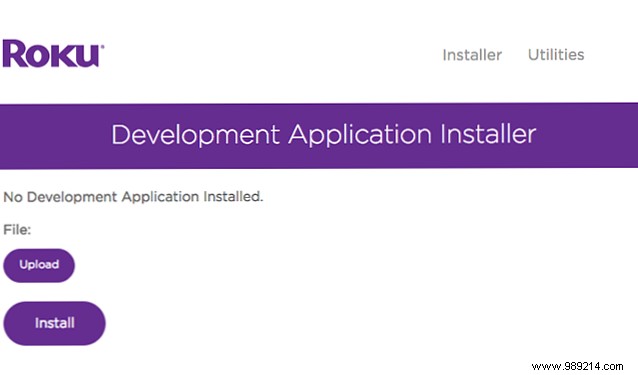
Downloading an app to your Roku is simple with these expert-tested instructions:
The channel uploads and installs in a few minutes. If it doesn't appear immediately, navigate to Settings > System > System Update > Check Now to refresh the full channel list.
