Android TV delivers an exceptional streaming experience for apps like Netflix. For niche content alternatives, explore 10 Niche Streaming Services for Netflix Alternatives. The Nvidia Shield shines for cord-cutters—discover 7 Reasons Why Nvidia Shield is Ultimate for Cable Cutters.
Not all Android TV boxes are equal. Premium models like the $300 Nvidia Shield Pro offer 500GB storage, while budget Chinese options on eBay might pack just 4GB. The good news? Adding more storage is straightforward with a USB drive.
Most Android TV devices with USB ports support external drives for reading and writing. To install apps and games on the drive, configure it as internal storage via Settings:
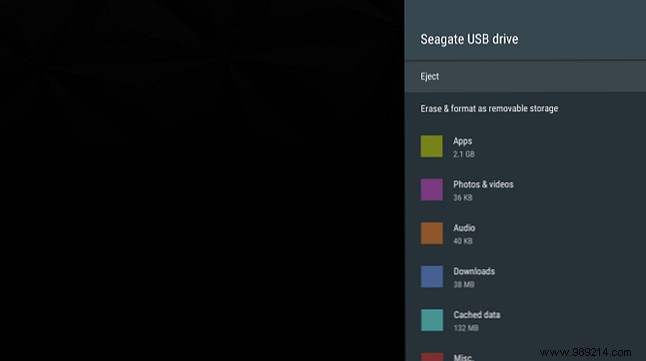
Allow time for formatting—your drive is now ready for apps and media. Note: Once formatted as internal storage, the drive can't be used on other devices without reformatting.
Have you boosted your Android TV storage this way? Share your experience in the comments.
