Want to personalize your GIFs with custom humor or branding? Gifntext provides a user-friendly online tool to overlay animated text, images, and brush strokes effortlessly. As a seasoned digital media expert, I've used it countless times for quick, professional results.
Here's how to add text to your GIF:
- Click the Text icon (T).
- Enter your text, then select font, size, stroke, and color.
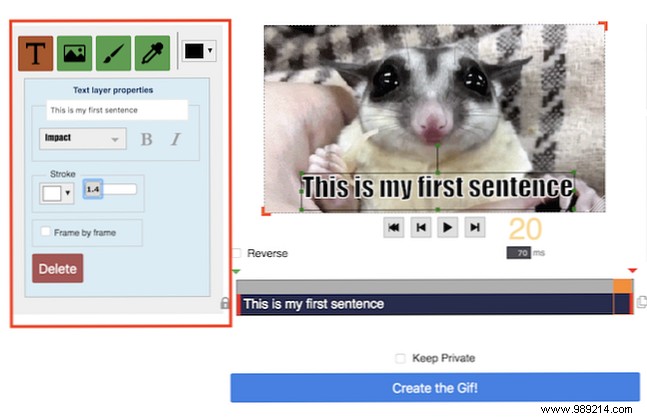
- Position the text by clicking and dragging it directly on the GIF.
- Control timing using the timeline below: Drag the red bars at each end to set duration, and the blue bar to set start time.
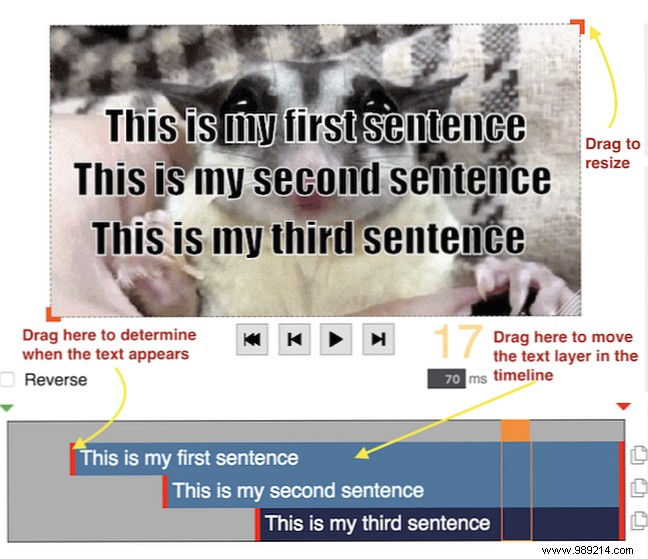
- Repeat steps 1-3 for additional text layers.
- Delete text by selecting it and pressing Delete. Duplicate layers using the Paste icon in the timeline.
- Check Keep private if desired, then click Create GIF.
- Right-click the rendered GIF and select Save Image As to download.
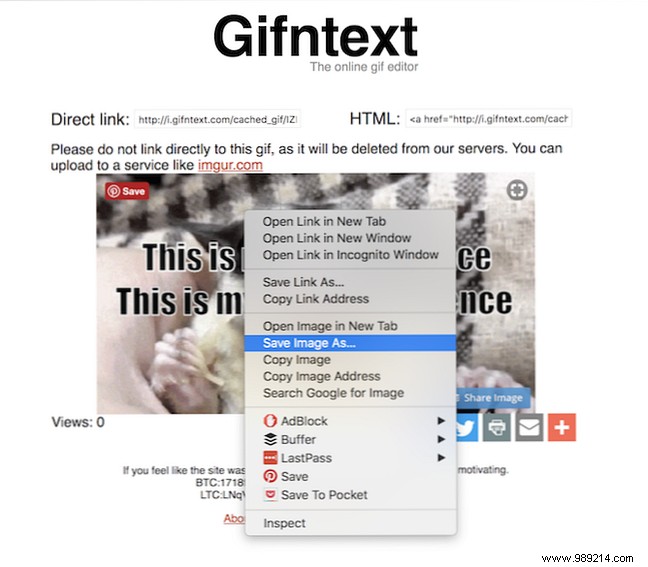
Note: GIFs must be under 100MB. For frame-by-frame precision, try EZGif as an advanced alternative.
Share your creation privately or on platforms like Facebook for maximum impact.
