Family Encyclopedia >> Entertainment

How to Hide Purchased Music and Content in iTunes: Step-by-Step Guide

As seasoned Apple users know, maintaining a curated iTunes library often means discreetly managing past purchases. Whether evolving tastes or privacy preferences, iTunes provides straightforward tools to hide music, movies, TV shows, apps, and more from your main view.

With years of experience guiding users through Apple ecosystems, we've streamlined the process below for Mac and Windows.
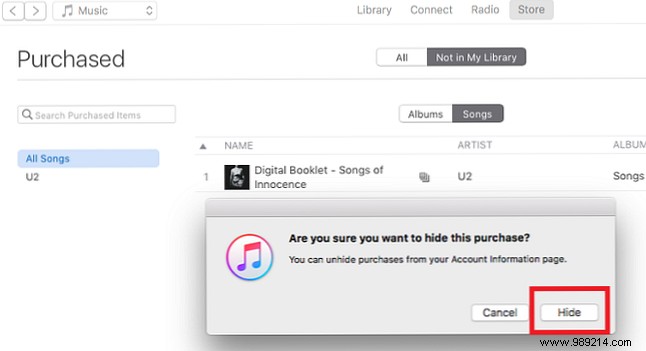
How to Hide Purchased Music on iTunes

How to Hide Purchased Music and Content in iTunes: Step-by-Step Guide

To hide purchased content in iTunes, follow these simple steps:

  1. Open the iTunes app.
  2. Sign in to your Apple ID if prompted.
  3. Navigate to Account > Purchased (or Account > Family Purchases if using Family Sharing).
  4. Select the content type tab at the top: Music, Movies, TV Shows, Apps, or Audiobooks.
  5. Locate the item to hide.
  6. Click the X icon on the right.
  7. Confirm by selecting Hide.

To restore hidden items, return to Account > Purchased and download them back to your library.
