With a large ebook collection, Calibre stands out as an essential tool for managing your library, transferring books to e-readers, and even removing DRM. For guidance on DRM removal, see our detailed tutorial. New to Calibre? Check our comprehensive user guide.
One of Calibre's standout features: it can automatically convert ebooks to MOBI format—the ideal choice for Kindle devices—right when you import them.
Why MOBI? It's the native format for Kindles, ensuring optimal rendering. Unlike EPUB (unsupported on Kindle) or alternatives like DOC, PDF, and HTML (which often have formatting issues), MOBI delivers a seamless reading experience.
This setup ensures ebooks are ready for your Kindle instantly, skipping manual conversions.
It takes just two quick steps.
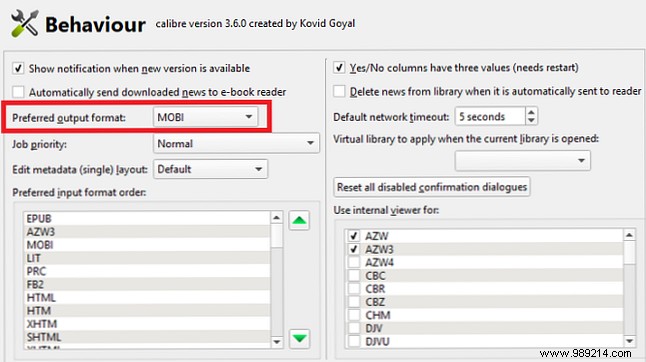
First, set MOBI as your preferred output format. In Calibre, navigate to Preferences > Interface > Behaviour.
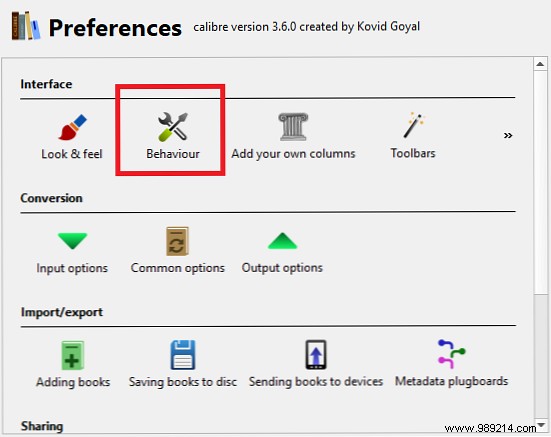
In the left pane, select Preferred output format and choose MOBI from the dropdown. Click Apply.
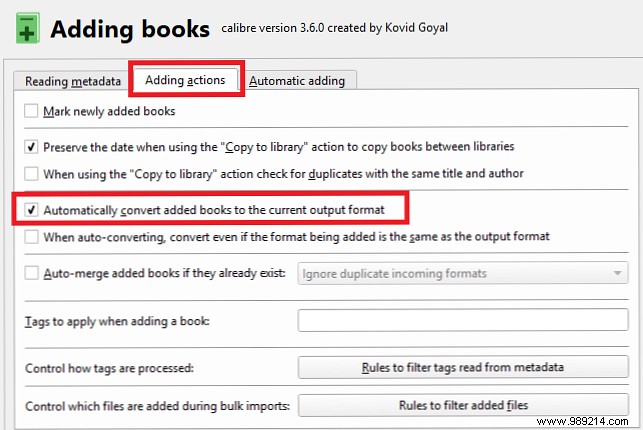
Next, go to Preferences > Adding books.
Select the Adding Actions tab and check Automatically convert added books to current output format. Click Apply.
Do you use Calibre for your ebook library? Share your favorite tips in the comments.
