You've installed Kodi on your device and are ready to enjoy movies and shows. But what happens when the phone rings or the doorbell sounds? Pausing requires a remote. If you don't have one or lost the original with your Kodi box, don't worry. Here's how to set up remote control for any Kodi setup. How to choose the best Kodi box for your needs Want to buy a Kodi box but not sure which one? We recommend specific models for your needs to help narrow options. Read more.
Regardless of the platform—whether PC, Fire Stick, or dedicated box—Kodi benefits from a remote. Options include your device's native remote, dedicated mobile apps like Kore, a web browser, or even your TV remote via HDMI-CEC.
The key is enabling remote control in Kodi's settings. You may need a mouse or keyboard initially to navigate menus.
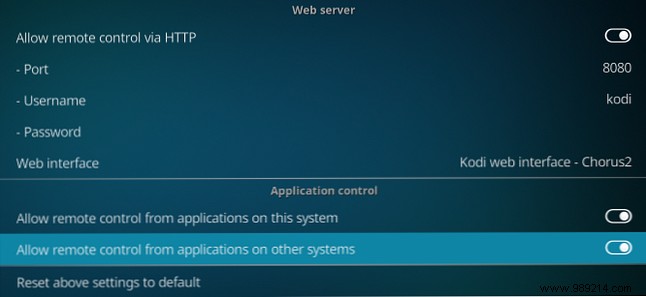
To use apps like Kore or other tools, first enable remote access. Go to the Settings cog (top-left). Select Services & Control, then enable Allow remote control via HTTP. Note the default port 8080 and username (customizable, but leave port unless expert).
Set a Password for secure access. Also enable Allow remote control from apps on this system and Allow remote control from apps on other systems. Save by clicking back or using the mouse in the upper-left.
For Android or iOS, Kore—the official Kodi remote app—is the top choice.
Download: Kore for Android | Official Kodi Remote for iOS
Setup is straightforward if both devices are on the same network. Find your Kodi device's IP address. How to Track an IP Address on a PC and How to Find Your Own Do you want to see the IP address of your computer? Free tools provide details. Read more.
Launch Kore, open the hamburger menu, tap Add Host > Next. It scans your network. If needed, search again or enter manually using your Kodi username/password.
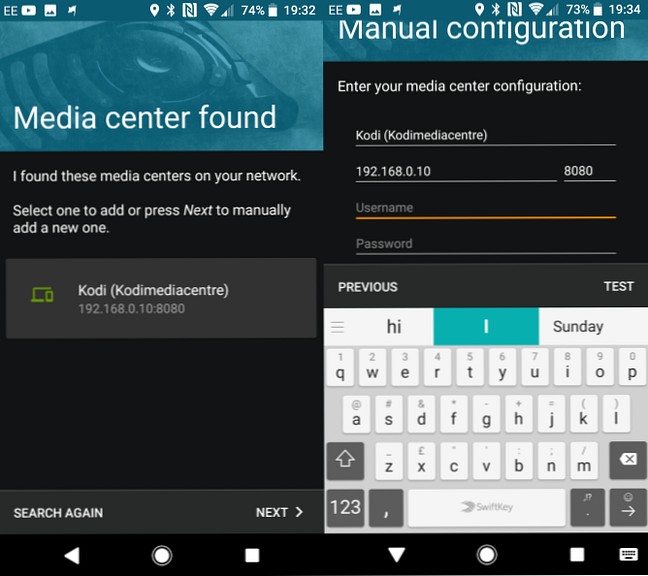
You're now set to control Kodi remotely from your phone. How to use the Peel Smart Remote app Control devices from your phone. Read more.
No app? Use any browser. Find your IP in Settings > System > Summary.
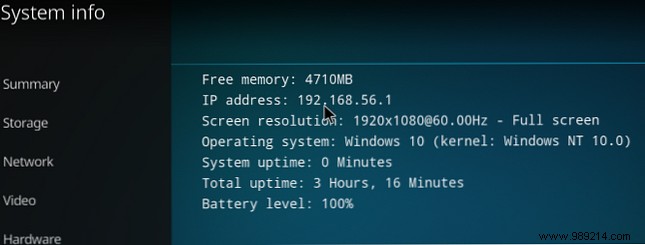
Enter:
https://YOUR.IP.ADDRESS.HERE:8080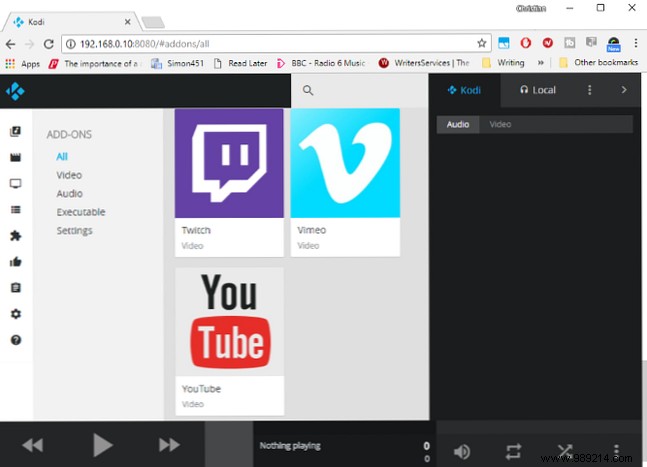
HTTP works but is slower than apps—fine for basic use.
On devices like Fire Stick, use the native remote. How to install Kodi on Amazon Fire Stick Get the best budget media center. Read more.
For HDMI-connected setups, enable HDMI-CEC (Consumer Electronics Control) on your TV. Names vary: Bravia Sync (Sony), Simplink (LG), Anynet+ (Samsung), etc. Check TV settings.
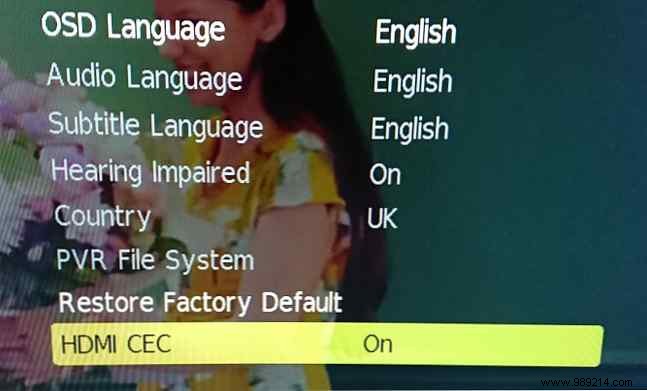
Once enabled, control Kodi seamlessly with your TV remote.
Setting up a remote unlocks Kodi's full potential for couch surfing. It's simple with these proven steps from years of hands-on experience.
For more, see our Kodi setup guide for beginners. Read more.
