Struggling with Kodi's default remote? As Kodi enthusiasts with years of hands-on experience setting up media centers, we've tested dozens of alternatives. From dedicated remotes to smartphone apps, discover the best options to navigate Kodi effortlessly from the couch.
Your current setup is likely one of these proven methods. Here's a breakdown to help you choose or upgrade wisely.
Dive deeper into each for setup tips and recommendations.
For budget-friendly, plug-and-play reliability, MCE remotes are a top choice. They include a USB IR receiver and work out-of-the-box with Kodi. Many all-in-one TV remotes support this too.
Most media players pair with RF or Bluetooth remotes. Devices like the Rii Backlit Air Mouse 2.4G MX3 Pro excel at menu navigation and media playback. Text entry is slower without a keyboard, but newer models include one.
Rii K25 Multifunction Portable 2.4GHz Mini Wireless Fly Mouse Keyboard and Infrared Remote Control with Rechargeable Li-ion Battery (Black) Buy Now On Amazon $22.49
If unsupported natively, use a free USB port with the remote's dongle.
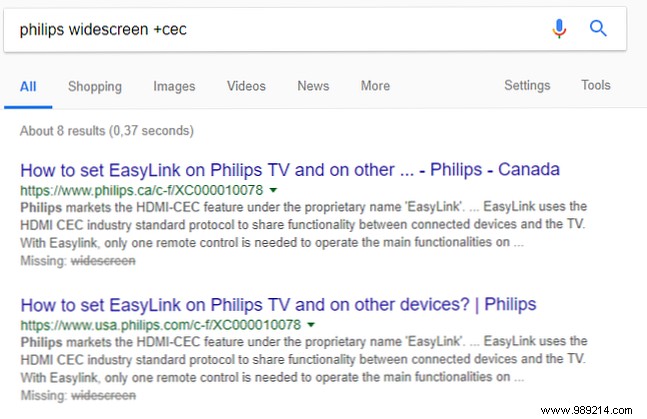
Surprisingly simple: Enable HDMI-CEC on your HDTV (also called Simplink, Anynet+, etc.). Search '[Your TV Model] + CEC' for instructions. Control Kodi with your TV remote—no extra hardware needed.
USB-compatible controllers like Xbox 360, PS3/PS4, or Wii work universally. Connect via cable or Bluetooth.
Xbox 360 Wireless Controller (Bulk Packaging) (Black) Buy Now On Amazon $33.99
Configure in Kodi: Settings > System > Input > Configure attached controllers. Map buttons as prompted; restart if needed.
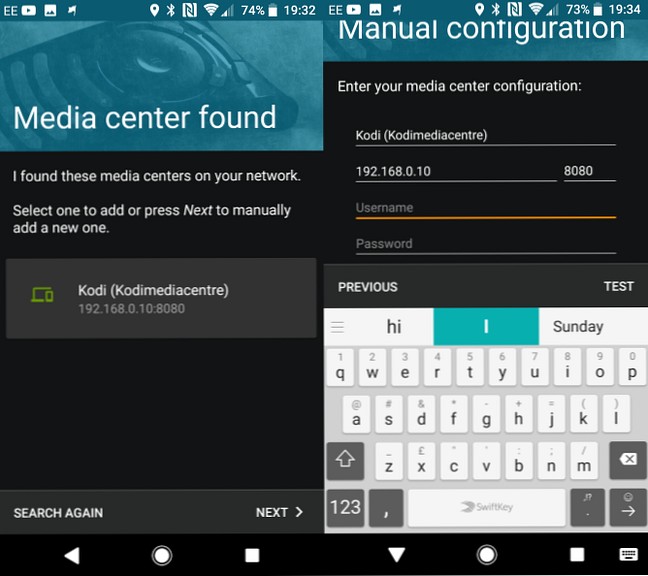
The official Kodi Remote apps for Android (Kore) and iOS offer touchscreen precision and fast text entry. Third-party apps or the built-in HTTP web interface are solid backups.
Download: Kore Official Remote for Android
Download: Official Kodi Remote for iOS
Pro-grade solutions like Control4, Crestron, and iRidium Mobile integrate Kodi alongside other home tech. Check the Kodi wiki for compatible providers and mobile app pairings.
Go hands-free with apps like Yatse or Unified Remote (Android) and Blue Remote (iOS). Say 'play YouTube' and relax.
Download: Yatse: Kodi Remote Control and Cast for Android
Download: Unified Remote for Android
Download: Blue Remote for Kodi on iOS
Note: Fire Stick users, see How to Install Kodi on Amazon Fire Stick first.
Wireless keyboards outperform on-screen ones for searches and add-ons. Opt for compact models with touchpads. See How to Use Kodi Without Breaking the Law for legal add-ons.
With these trusted options, perfect control is within reach. Learn more in How to Set Up a Kodi Remote.
