Family Encyclopedia >> Entertainment

How to Download Movies and TV Shows on Netflix for Offline Viewing: Complete Guide

Netflix now lets you download movies, TV shows, and documentaries from its vast library for offline viewing. Perfect for travel, commutes, or spotty Wi-Fi, this feature ensures uninterrupted entertainment. As long-time Netflix experts, we've guided thousands through seamless setup and usage.

To download content, use the Netflix app on these supported platforms:

  • iOS 9.0 or later (phone or tablet)
  • Android 4.4.2 or later (phone or tablet)
  • Windows 10 version 1607 or later (tablet or PC)

Note: This feature isn't available on TVs or web browsers.

Step-by-Step Guide to Downloading on Netflix

  1. Launch the Netflix app on a supported device.
  2. Tap the menu icon (hamburger button) and select Available for download.
  3. For TV shows, tap the download icon next to each episode. For movies or documentaries, find it below the red Play button.
    How to Download Movies and TV Shows on Netflix for Offline Viewing: Complete Guide
  4. Monitor progress at the bottom of the screen as it downloads.
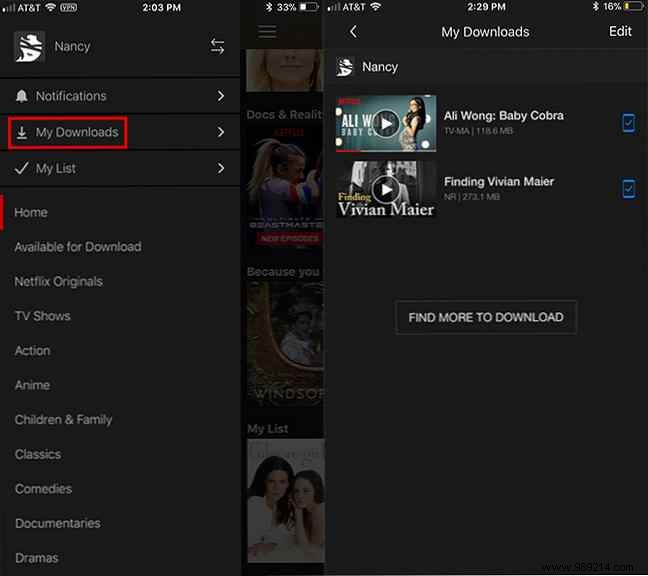
  5. Access your downloads via the menu icon, then tap My downloads.
    How to Download Movies and TV Shows on Netflix for Offline Viewing: Complete Guide
  6. To delete: Go to My downloads, select the title, tap Edit, then the red X.

Important: Downloads expire—some after 48 hours of playback start, others after 7 days (with app notifications). They also consume data during download and storage space on your device.

Do you use Netflix downloads? Which titles do you wish were available offline? Share in the comments below.