Congratulations on adding a Chromecast to your setup—it's a smart upgrade for seamless TV streaming. As avid users who've tested countless streaming devices, we're excited to share how it goes beyond basic video playback.
Debating whether to cut the cord from cable TV? Our comprehensive guide weighs the pros and cons to help you decide. In the meantime, discover eight expert hacks that unlock your Chromecast's full potential. With apps continually adding support, these tips—drawn from real-world use—will elevate your experience today.
Google's Backdrop feature, launched in late 2014, turns idle Chromecast screens into useful displays, much like a laptop screensaver.
Choose from panoramic photos, Google Photos slideshows, weather updates, or news headlines. For staying informed effortlessly—without constant phone checks or background news channels—news headlines shine.
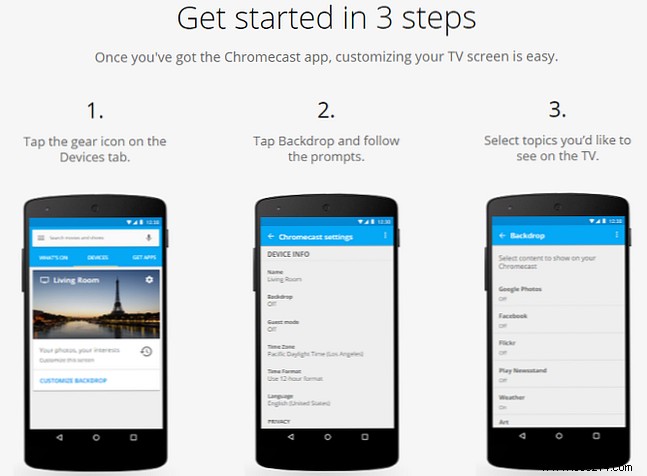
Headlines pull from the Play Newsstand app, so set it up first. Enable via the Google Home app: Settings > Background > Play Newsstand.
Gain early access to Chromecast updates through Google's Preview Program. Provide feedback in return for cutting-edge features before public release.
Enroll via Google Home app: Select your device, then Settings > Preview Program > Join Program. If unavailable, check back later—spots fill up.
To exit: Preferences > Preview Program > Quit Program. Note: While not full beta software, expect occasional bugs.
We've all faced late-night viewing conflicts: You crave a Dwayne "The Rock" Johnson flick, but low volume kills the immersion.
LocalCast for Chromecast solves this. Connect headphones to your phone or tablet—audio plays there, video on TV.
Activate easily: Tap Route audio to phone on the app's Playing Now screen.
Creating shared music playlists is simpler than ever. Pair Chromecast with YouTube for group queuing.
Guests open YouTube app, tap the Cast icon, select Add to queue (not Play Now). A confirmation appears, and songs play in sequence.
Ditch lost remotes and dead batteries. Chromecast uses HDMI-CEC, supported by most modern TVs, to control power.
Enable in TV settings if needed. Power Chromecast from a wall outlet (not TV USB), then start streaming—your TV turns on automatically.
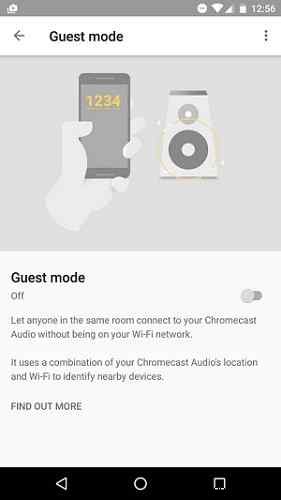
No more huddling around tiny phone screens for viral videos. Guest Mode lets anyone cast to your TV with a PIN.
Activate in Google Home: Settings > Guest Mode.
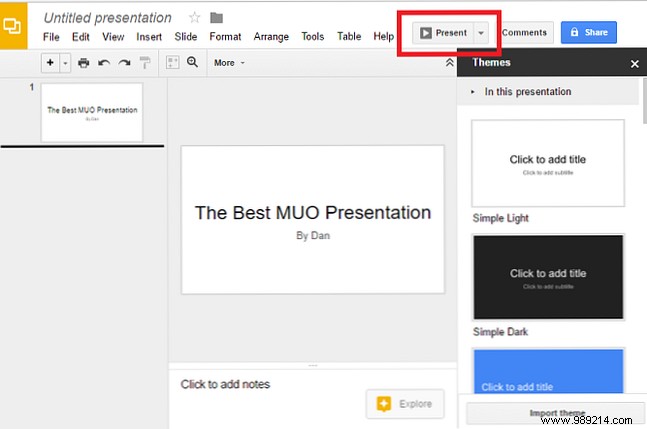
Chromecast excels professionally too. Skip HDMI hassles for meetings—cast Google Slides directly.
Save presentations in Google Slides, click Present in the top-right corner.
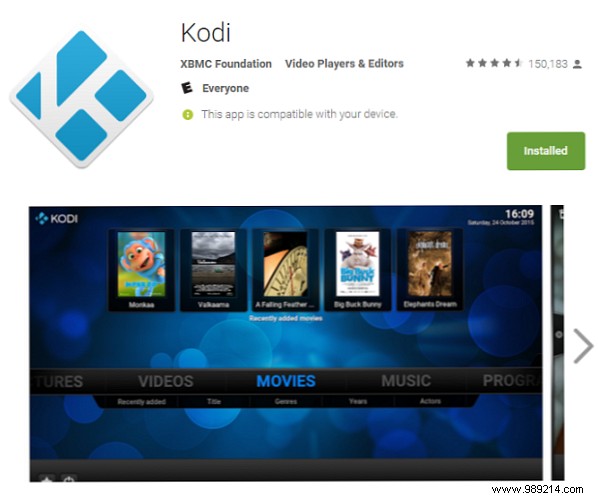
Kodi delivers powerful media management. On Android, grab the official Play Store app.
Use Google Home to mirror your screen—Kodi content streams to TV instantly.
These eight tips revive your Chromecast, but the community has more. Which tweaks ensure smooth performance? Favorite third-party apps? Share in the comments below!
