Want to enjoy Netflix on the big screen? Watching your favorite shows and movies on TV elevates the experience like nothing else.
Whether you're a cord-cutter ditching cable or simply seeking a better alternative to small screens, these five reliable methods will get Netflix up and running on your TV quickly and easily.
Navigating smart TV platforms can be tricky, but most modern TVs run one of four major systems: Tizen, webOS, Android TV, or Roku TV. While interfaces vary by manufacturer, the great news is that Netflix apps are available across all of them.
Many TVs even pre-install the app with a dedicated remote shortcut. Simply search your TV's app store, install Netflix if needed, log in with your credentials, and start streaming in moments.
Smart TV apps aren't always optimal—older hardware can lead to lag or glitches. Enter Chromecast: a simple dongle that lets you cast from your phone or tablet.
Open the Netflix app on your mobile device, tap the Cast icon in the top right, and select your Chromecast from the list. It connects in seconds.
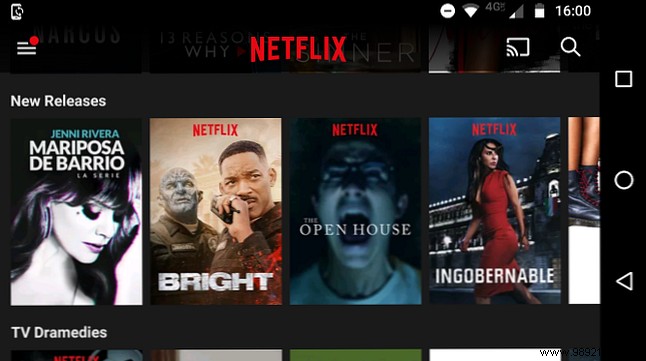
Note: Check your TV manual first—many newer models have Chromecast built-in. Devices like the Nvidia Shield also support it natively.
Miracast offers wireless screen mirroring as a cable-free alternative to HDMI. Finalized by the Wi-Fi Alliance in 2013, it's built into Windows 8.1+, most Android devices, Roku players, Amazon Fire Stick, and many smart TVs. (Apple devices don't support it.)
On Android: Go to Settings > Display > Cast Screen and select your TV. On Windows: Use built-in screen mirroring features.
For a foolproof wired option, connect your computer to the TV via HDMI. Affordable cables are widely available.
Plug one end into your TV and the other into your computer. Open Netflix in your browser, select content, and switch your TV to the correct input.
If the TV isn't detected automatically:
Right-click the Start Menu, select Mobility Center, find External Display, and click Connect display. Choose Second screen only.
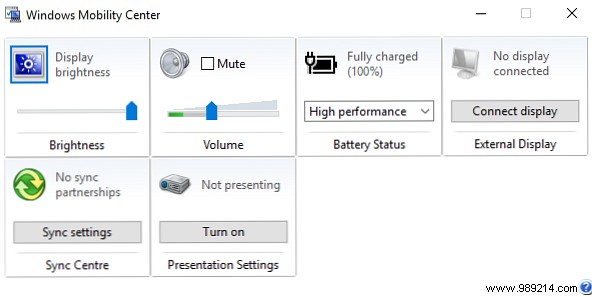
Your Windows screen will go black as video and audio shift to the TV.
Note: Some laptops have HDMI shortcut keys.
Note: Many modern Macs lack HDMI ports—use an adapter. For overscan issues (black borders), adjust your TV settings.
Apple skips Miracast and Chromecast in favor of its ecosystem. Get an Apple TV set-top box for the native Netflix app, or use AirPlay to mirror the web version from your Mac/iOS device.
AirPlay works reliably within Apple devices, though support on non-Apple TVs is limited.
These five methods suit different setups—from smart TVs to computers. Pick based on your gear, then track your viewing with tools like Trakt for recommendations.
What's your go-to method for Netflix on TV? Or do you prefer mobile viewing?
