A few weeks ago, I ran into a frustrating issue with the Spotify desktop app on Windows: after an ad finished, playback paused instead of resuming, requiring a manual tap on Play.
After researching online, I found many users reporting the same problem, but no one-size-fits-all solution. Based on what worked for me and others, here are reliable fixes to try—results can vary.
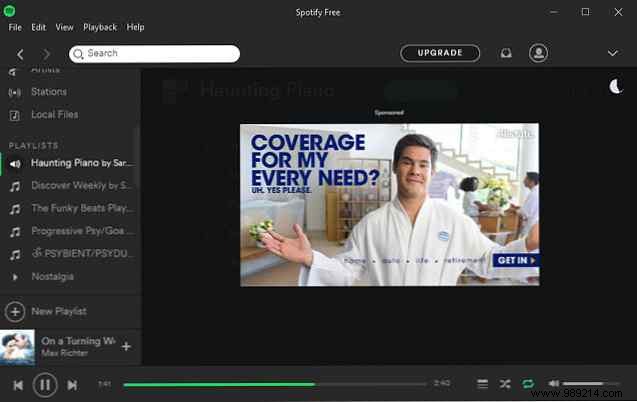
1. Enable Repeat (Replay). It sounds basic, but check if you've reached the end of your playlist without Repeat turned on.
2. Update Spotify to the latest version. The quickest method: uninstall Spotify, then download and reinstall from the official site. Note: this resets your app settings.
3. Clear Spotify's cache. Close Spotify completely. Open File Explorer, type %APPDATA%\Spotify in the address bar. If there's a Users subfolder, navigate to your user folder (e.g., "jleeso-user"), and delete ad-state-storage.bnk and prefs files.
Relaunch Spotify. This targets ad-related glitches and often resolves the pause issue.
4. Activate Private Session. Not foolproof, but it helps some users. Go to Settings > Social > toggle on Private Session.
5. Disable hardware acceleration. Another user-favorite tweak. Head to Settings > Show advanced settings > Compatibility > turn off Hardware acceleration.
Did one of these fix it for you? Drop a comment below with which worked—or if none did. Your feedback helps everyone troubleshoot better!
