With multiple Amazon Echo devices, you can create a seamless multi-room audio experience or even use them as a home intercom system. For intercom setup details, see our guide on using Amazon Echo as an intercom.
Whether placing Echos in different rooms or amplifying sound in one space, setup is quick, and playback requires just a simple voice command.
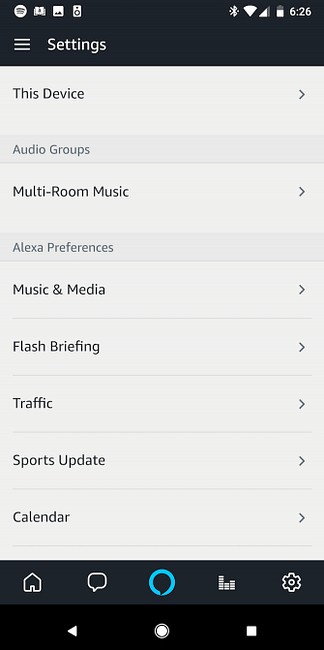
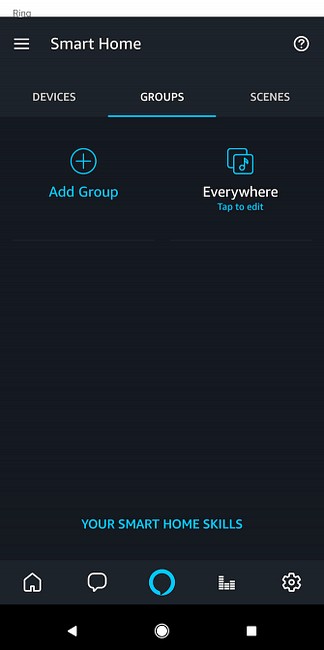
This Multi-Room Music feature can only be configured by the account holder who registered the devices.
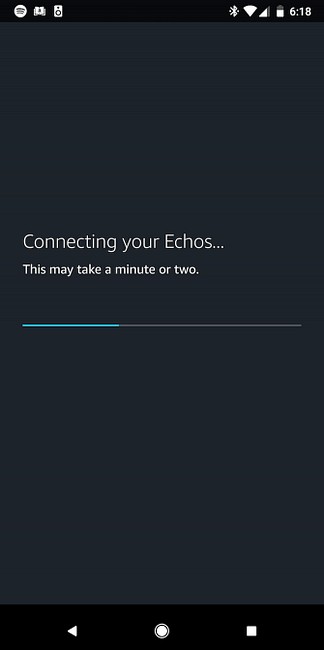
Your Echos will connect within minutes. With more than two devices, create multiple groups to pair specific ones or exclude others from simultaneous playback.
Once configured, play music group-wide with a voice command like "Alexa, play [song/artist] everywhere."
You can specify the service too, such as "Alexa, play [song] on Spotify everywhere."
Compatible services include:
Note: Multi-Room Music disables Bluetooth, so it doesn't support Bluetooth audio sources. For single-Echo playback options, check our full guide on all ways to play music with Amazon Echo and Alexa.
